Recognize tearing before changing settings
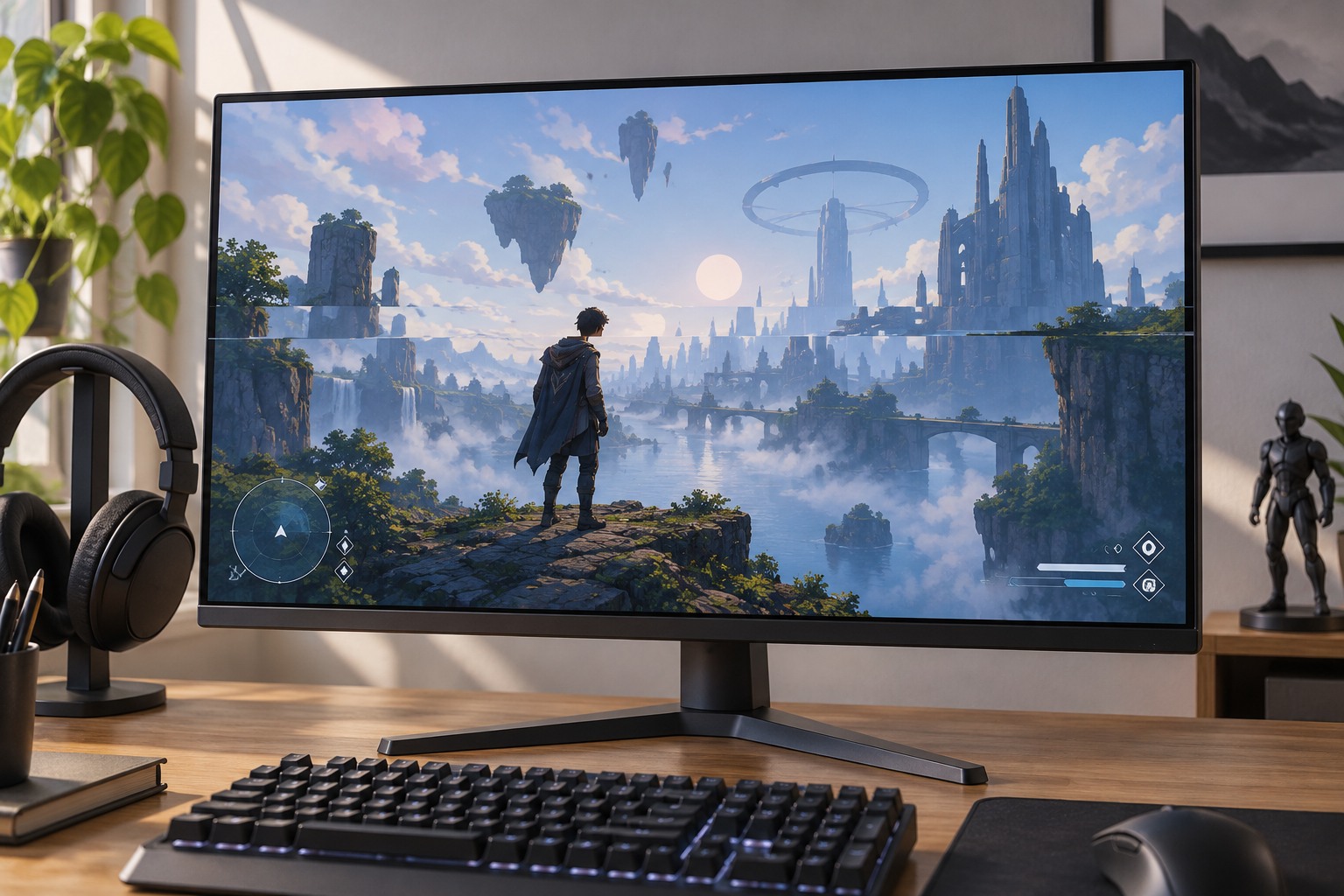
Tearing appears as a visible discontinuity across the image when portions of different frames are shown during a refresh. It is often easier to notice while panning past straight vertical objects. Do not confuse it with a whole-frame hitch, a blurry moving object or a brief loading pause. Those symptoms can coexist, but they do not necessarily respond to the same control.
NVIDIA's control-panel reference describes vertical synchronization as coordinating the application's frame presentation with display refresh to eliminate tearing. That basic purpose is distinct from making the computer render faster. Enabling it can change the way frames are delivered and how controls feel, so observe both the image and the response rather than judging only a counter.
Inventory the controls already active
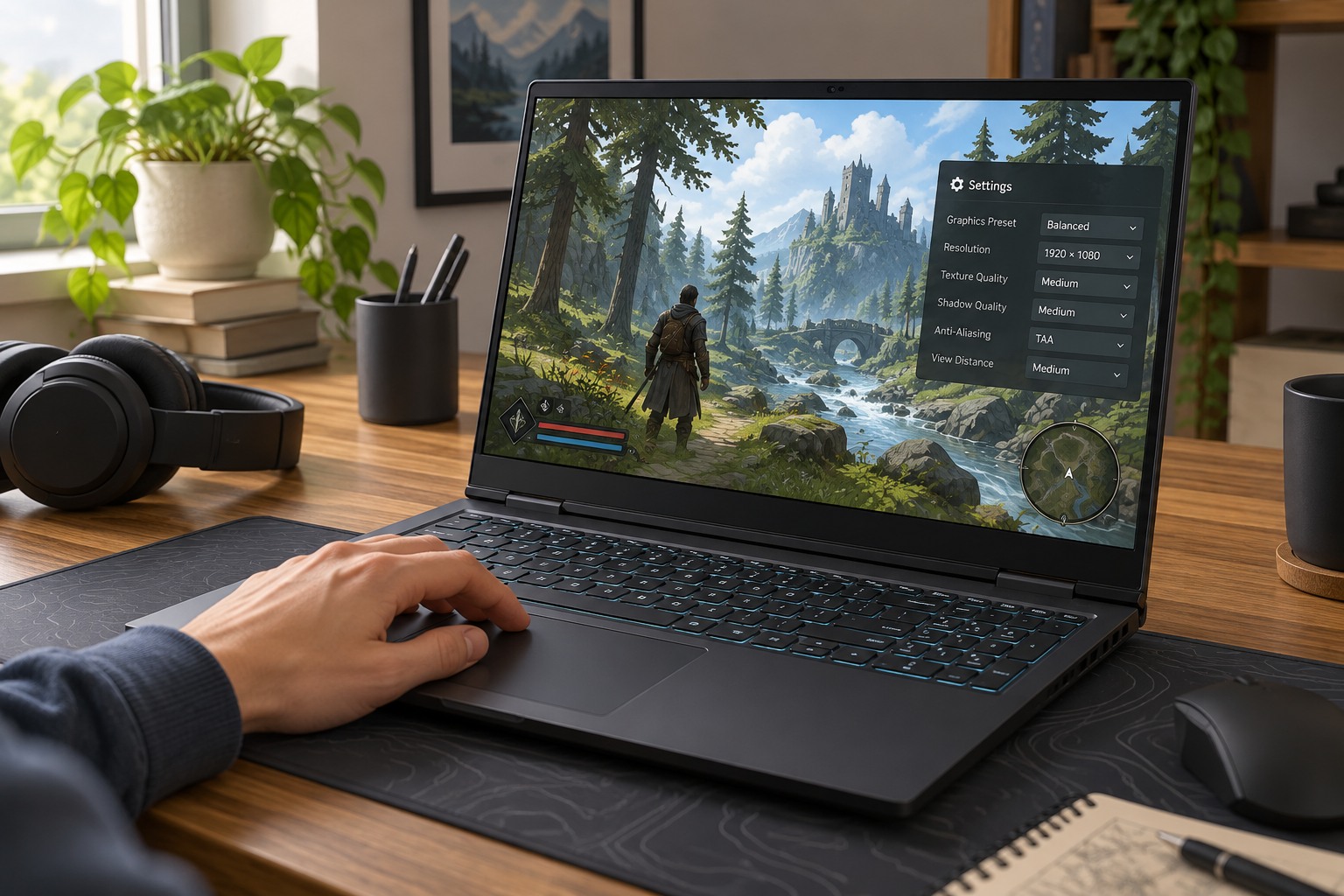
Look for synchronization settings in the game, graphics driver and monitor. Also note any frame-rate cap or adaptive-refresh feature. Several controls can interact, and a setting called adaptive sync is not simply another name for ordinary fixed-refresh V-sync. Confirm the display's supported features and the connection in use before following a guide written for a different monitor.
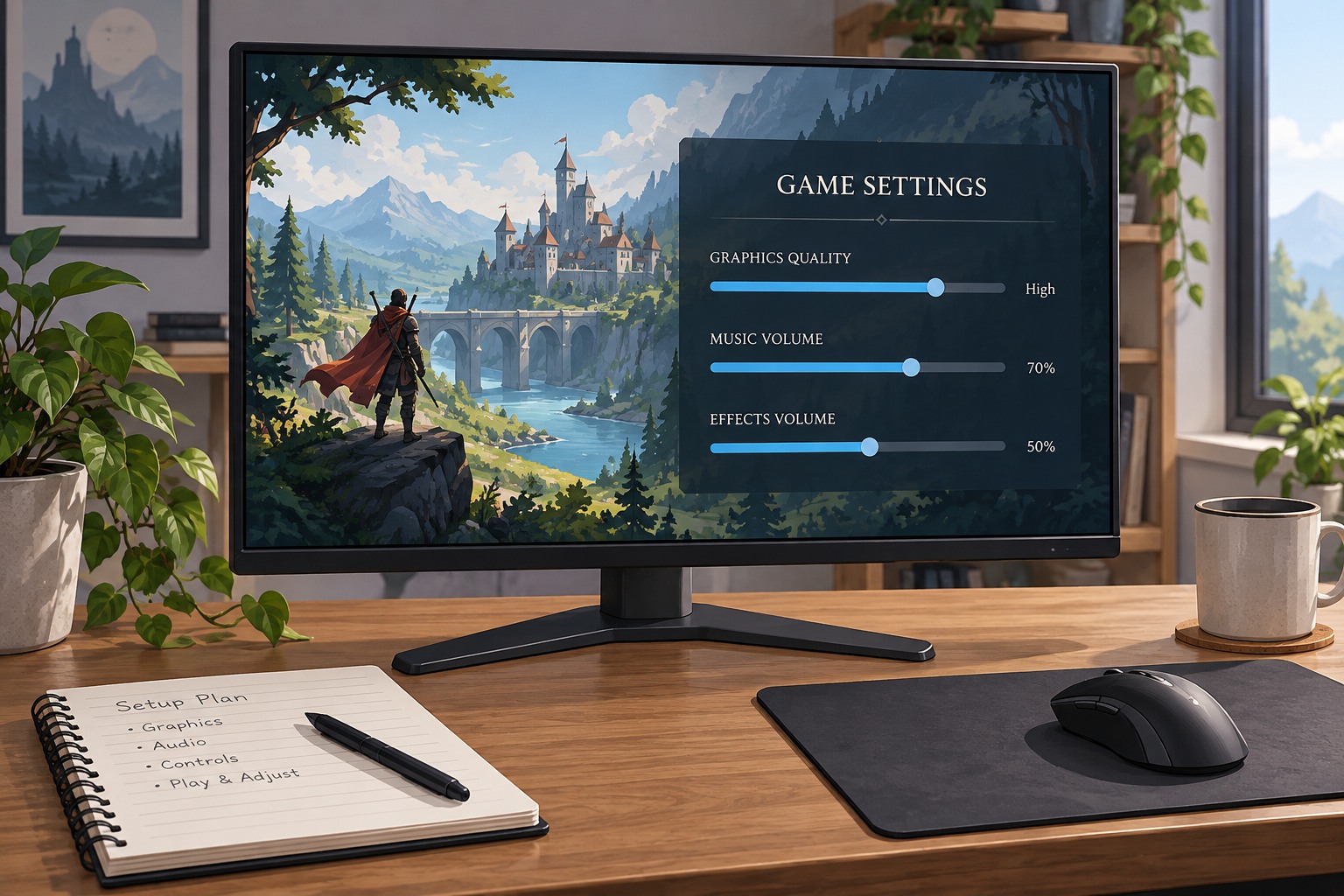
Start from a documented, simple arrangement. Avoid applying a game setting, a driver override and a third-party limiter simultaneously without knowing which one controls the result. If a game provides a clear recommendation for its implementation, use that as the baseline. Save the existing configuration before changing it so you can restore a known state if the comparison becomes confusing.
Compare a repeatable pan and an interaction
Use a scene with obvious vertical edges and move the camera at a consistent speed. Compare V-sync off and on, applying any restart the game requests. Look for tearing, uneven motion and changes in the feel of turning or selecting objects. Repeat the comparison in a demanding area as well as a quiet one, because a computer that cannot maintain the same frame delivery everywhere may behave differently.
For example, a quiet training room may look smooth while a busy scene introduces uneven motion. That does not prove the monitor is faulty. Record the observed frame rate and the active synchronization configuration, then reduce a relevant graphics load or choose a more sustainable target as a separate test. Keep the scene and input action consistent so the result remains interpretable.
Do not use a universal rule such as always on or always off as a substitute for the test. A player sensitive to tearing may accept a different compromise from someone prioritizing the quickest-feeling response. The useful choice also depends on whether variable refresh is supported and configured correctly. Follow the display and graphics vendor's guidance for that combination rather than copying an unexplained cap value.
If the tear appears only on a secondary monitor or after switching display inputs, verify the active refresh mode and the route used by the game. A desktop configured for one screen can behave differently after a display is disconnected or duplicated. Check the operating-system display information and the game together before changing synchronization again. Keep the test on one known display until the behavior is understood, then restore the multi-screen arrangement and compare.
Keep the result understandable
Once you select a configuration, write down the game option, any driver override, the display refresh rate and the limiter in use. This is especially helpful when a laptop alternates between its built-in panel and an external monitor. The same game can encounter a different display path after docking.
If tearing or delayed-feeling controls return after a change, compare those recorded settings before buying cables or replacing hardware. A reset preset or a different refresh mode may explain the difference. Treat V-sync as one part of frame presentation, not a repair for network lag, slow storage or every kind of stutter.