Confirm the supported connection
Check that the controller supports the exact platform and connection method you are using. A model may work through USB on one device and through a dedicated wireless receiver on another. Ordinary Bluetooth support should not be assumed from the presence of wireless branding. Read the controller maker's compatibility information before installing software or replacing parts.
For a wired test, use a known suitable data cable and connect directly to a supported port. A cable that charges a device may not carry the data needed for input. Remove an unverified hub or extension temporarily so the test has fewer components. Inspect accessible plugs and sockets for damage without inserting tools or forcing a connector.
For wireless use, confirm power and follow the documented pairing procedure. Check whether the controller is still connected to another nearby device. Pairing history can make it reconnect somewhere unexpected. Do not repeatedly reset every device at once; establish which connection is active, then change one part of the arrangement.
Check recognition before launching the game
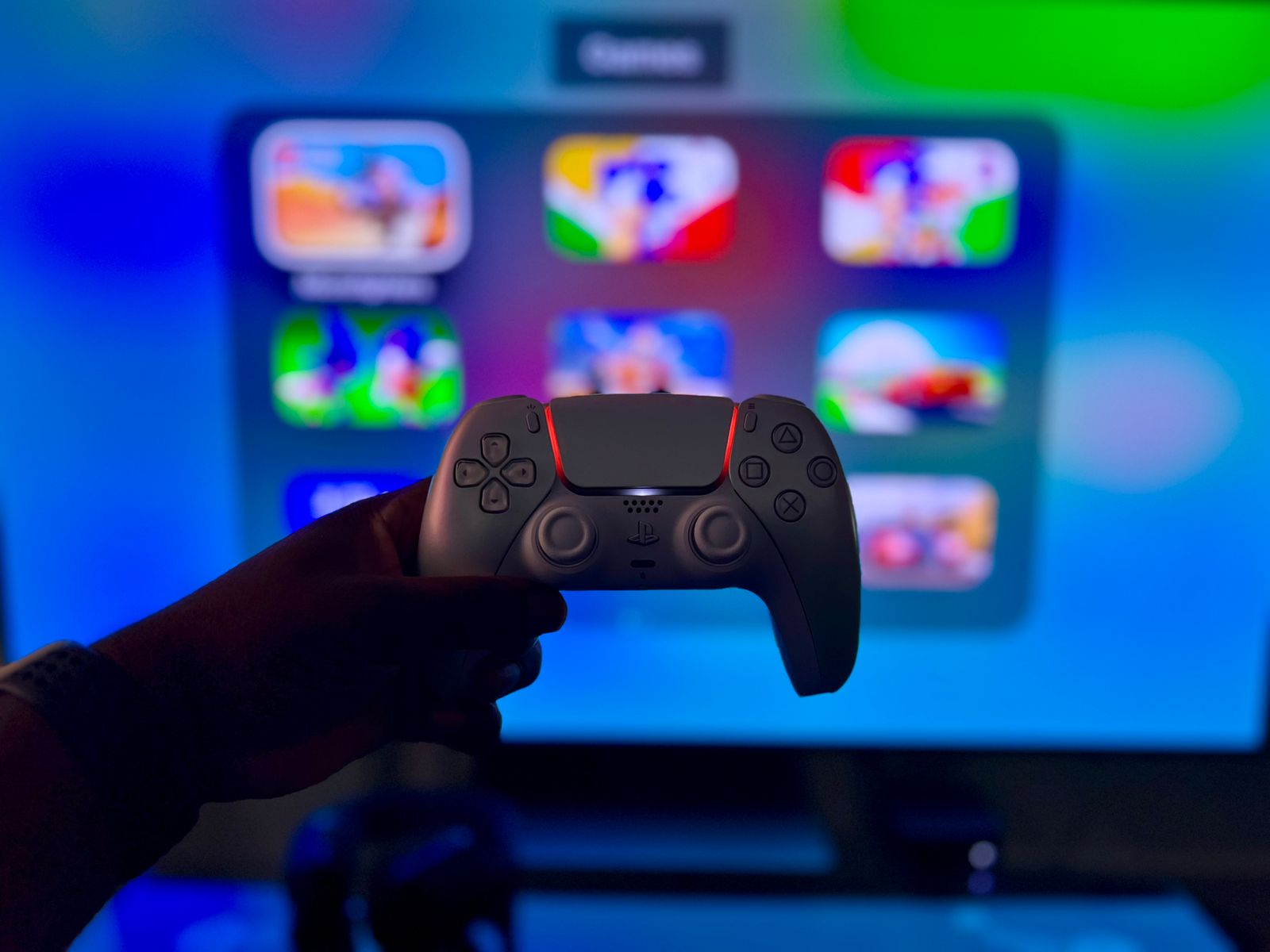
Use the platform's supported controller test or settings screen if available. If the device is absent there, focus on connection, compatibility and required official software. A game-specific remap will not solve a controller that the platform cannot see. Follow the manufacturer's firmware instructions only when they apply to the exact model, keeping power stable during any update.
If the platform recognizes the controller, test buttons and sticks in that screen. Recognition alone does not prove all inputs work. A successful basic test narrows the problem to the game or an intermediate software layer. Keep that result in your notes so you do not repeat cable changes after proving the connection works.
Simplify the game's input path
Launch a game that explicitly supports the controller or the relevant input standard. Check its controller-enable setting and whether a particular player slot needs to be selected. Some games require a restart after changing devices. Read the game's current instructions rather than assuming every title hot-swaps input in the same way.
A launcher-level controller translator, a manufacturer utility and another remapping tool can overlap. Avoid running several conversion layers without a reason. Test the game's documented arrangement with unnecessary layers closed or disabled through their normal controls, preserving existing profiles first. If the game receives duplicate inputs or shows rapidly changing prompts, note that behavior because it can suggest overlapping input paths.
Use a comparison that answers one question
Try the controller in another supported game, or try a known-working supported controller in the original game if one is available. The first comparison asks whether the device works beyond this title; the second asks whether the title accepts another device through the same route. Neither test guarantees the hardware is perfect, but each narrows the investigation.
Record the model, connection method, platform version and exact symptom before contacting support. Include whether the platform test recognized it and whether another game worked. Avoid installing drivers from an unrelated download site or changing system security settings as a generic fix. A specific report is more likely to lead to a useful next step than saying only that the controller does not work.
Also check whether the controller is assigned to an unexpected player slot. A device can be recognized and functioning while the game is waiting for input from player one. In a local multiplayer title, leave the joining screen and repeat the documented assignment sequence with only the necessary devices connected. If that resolves the issue, record the joining order rather than changing drivers for a connection that was already working.