Compare the physical action
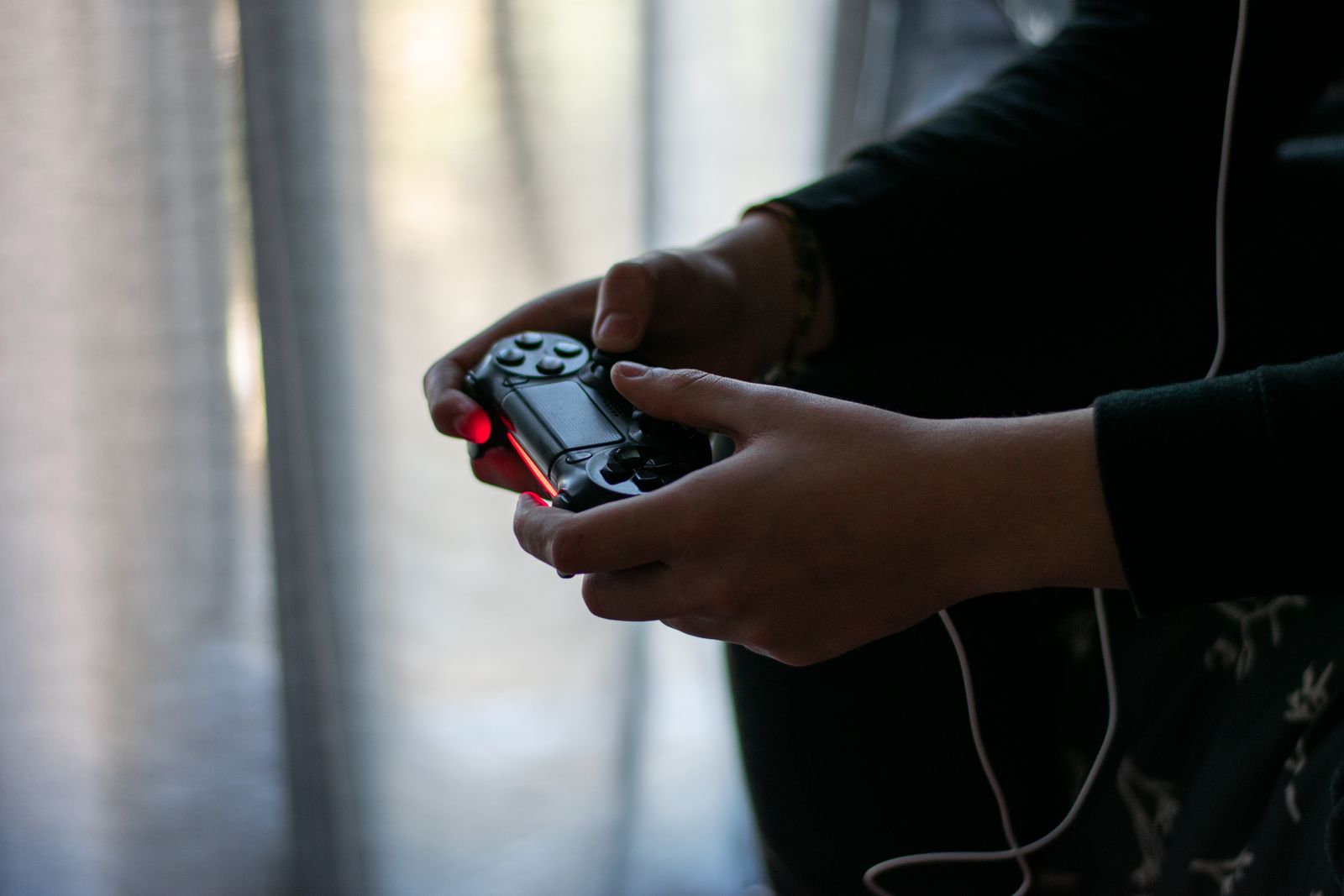
A hold control stays active while a button remains pressed. A toggle usually starts the action with one press and ends it with another or with a defined interruption. Sprinting, aiming and crouching often expose this choice, but behavior varies by game. Read the description and test the exact action rather than assuming every toggle cancels in the same way.
Microsoft's input accessibility guidance identifies toggle alternatives as one way to reduce sustained input requirements. That is a useful design principle, but the setting still needs to suit the individual player and game. Someone may prefer a toggle for long travel and a hold for a brief action. There is no need to choose one method for every control.
Check how the action ends
Try stopping, opening a menu, interacting with an object and changing movement direction. These events may cancel a toggled action or leave it active. Understanding the exit behavior prevents surprises during normal play. If the game shows an on-screen state indicator, make sure it is visible enough to tell whether the action remains engaged.
For aiming or defensive actions, test the transition into and out of the state in a practice area. The goal is reliable control, not simply reducing button presses on paper. A toggle that is comfortable during exploration may feel less predictable in a fast sequence, while a hold may be tiring over a long traversal. Separate those use cases where the game offers individual settings.
Avoid solving an unavailable toggle with an automated repeating macro without first checking the game's rules and supported accessibility options. A built-in toggle and an external automation that repeatedly sends inputs are not necessarily treated the same way. Use the game's documented facilities whenever they meet the need.
Keep the layout understandable
After selecting the behavior, place the action on a comfortable key or button. A toggle still needs to be reached reliably, and its second press should not conflict with another frequent command. Test it alongside movement, interaction and menus so the whole layout works together. If you use a system-level remap, remember that the displayed prompt may still show the original button.
Keep a screenshot of the control settings and tell other people using the same profile if the behavior has changed. Recheck after a preset reset or an update that modifies input options. A small adjustment can make a repeated action more manageable, but the benefit comes from a predictable combination of mapping, activation and cancellation.