Look at surfaces rather than silhouettes
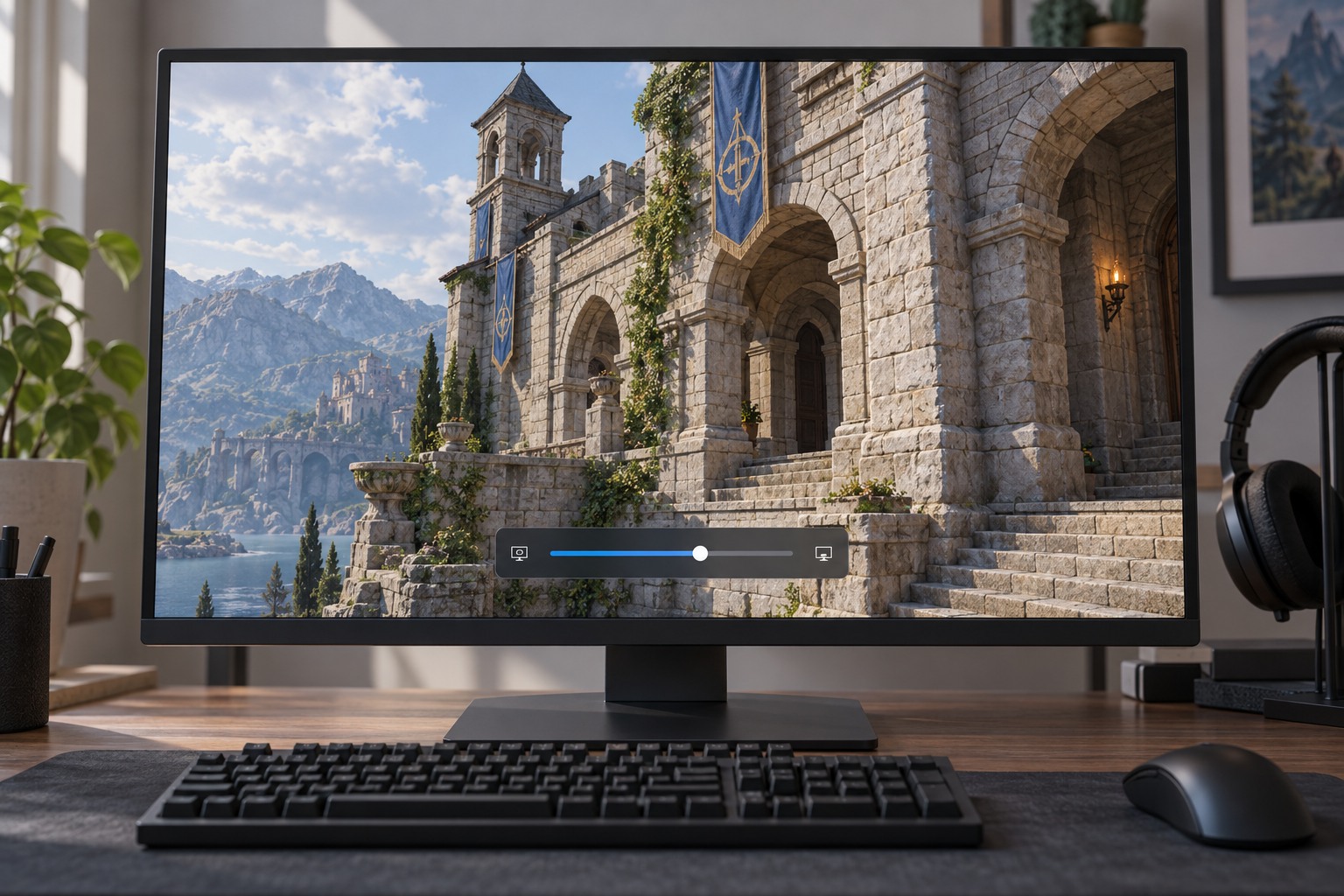
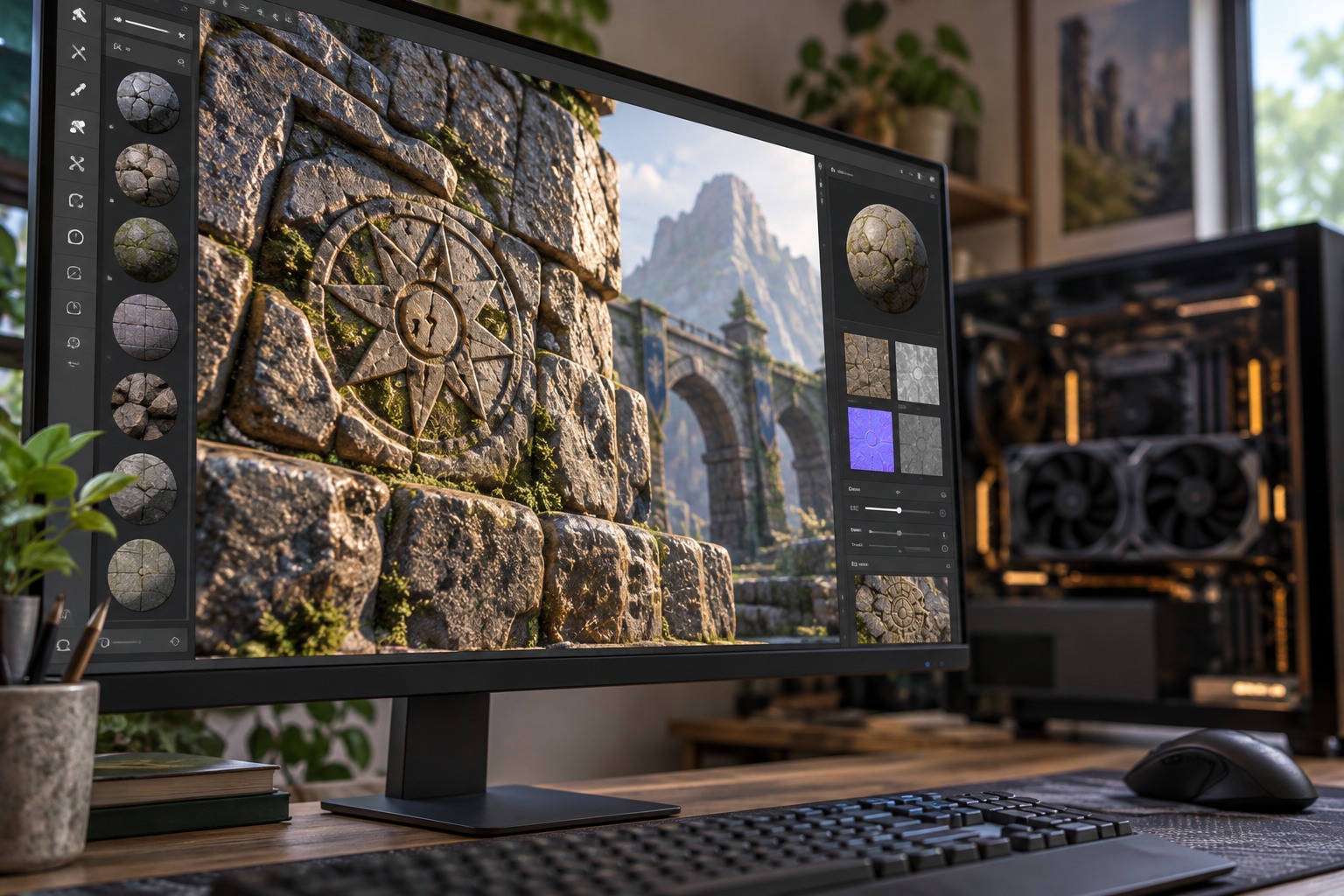
Textures contribute detail such as lettering, fabric patterns, ground markings and surface variation. They are not the same control as the number of polygons forming an object or the resolution of the final screen image. To compare texture settings, inspect a familiar wall, character outfit or sign at a distance where the detail is visible. A distant landscape may conceal the difference.
Apply the setting as the game requires. Some titles need a reload or restart before all assets reflect the new selection, and a scene can take time to finish loading detail. Comparing immediately after a change can therefore be misleading. Follow the on-screen instructions and return to the same place before judging the result.
Treat memory estimates as guidance
A game's memory meter can help identify a demanding configuration, but it may be an estimate rather than a complete account of every allocation. Other graphics settings and background applications can affect available resources. Do not assume that a meter barely below a marked limit guarantees smooth behavior in every area, or that a number above it proves a specific fault without observing the game.
Watch for the actual symptom: delayed detail appearing on surfaces, repeated hitches while moving through new areas, or a warning from the game. Those symptoms can have more than one cause. Compare a lower texture setting while keeping the rest of the configuration unchanged. If the behavior improves consistently and the lost detail is acceptable, the lower setting may be the more useful compromise.
Keep detail where it is visible
The highest texture option may make little difference at your seating distance or in the scenes you play most often. Compare readable signs and nearby objects, not only enlarged screenshots. Conversely, a very low setting can make an otherwise sharp image look muddy. Choose the level that preserves meaningful detail without repeatedly running into the limitations you observed.
Do not buy a graphics upgrade on the basis of one texture warning alone. Check the game's requirements, repeat the comparison after normal loading has settled and review other applications using graphics resources. Keep a record of the working setting for that title. A different game can use memory differently, so one successful preset should not become an automatic rule for the entire library.