Describe the symptom first
A pointer that jumps, a camera that turns too quickly and a mouse that stops registering while lifted are different problems. Write down when the behavior appears: on the desktop, in one game, across every game, or only near an edge of the pad. This prevents a vague impression of a bad sensor from turning into an unnecessary purchase.
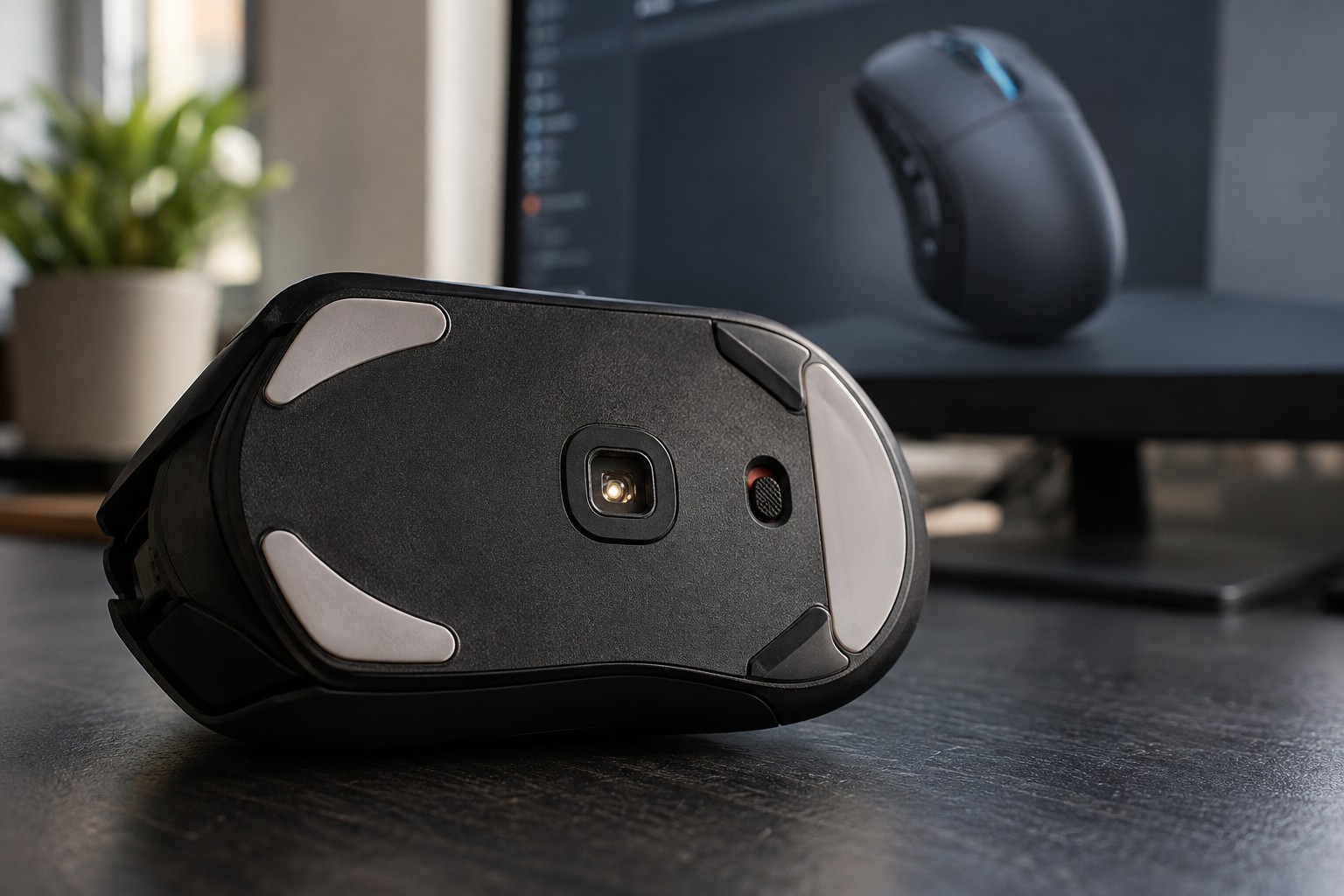
Inspect the underside and the surface without dismantling the mouse. Dust near the sensor opening, a damaged pad or feet that no longer sit evenly can change the experience. Use the manufacturer's cleaning guidance for the model; do not push a sharp object into the sensor opening or apply a cleaner simply because it worked on another device.
Return to a known set of settings
Record the current DPI stages, operating-system pointer settings and the game's sensitivity. If the mouse has a button that cycles DPI, confirm which stage is active. A profile that changes automatically when a game starts can explain why the desktop feels normal while the game does not.
Microsoft provides separate Windows controls for pointer speed and other mouse behavior. Games may handle mouse input differently, including options that use raw input. Avoid assuming that a desktop adjustment will have the same effect everywhere. Test the actual game and note which setting changes the behavior you are investigating.
If the software offers surface calibration or lift-off-distance settings, read the model's explanation before changing them. These controls are not universal, and a setting copied from another mouse may not exist or behave identically. Restore a known default when you are unsure, then make one change and repeat the same movement.
Use a small comparison rather than random tweaking
Choose a repeatable task, such as moving between two stationary points in a training area or dragging a window across the desktop. Test it on the usual surface, then on another suitable clean surface if available. Keep the cable route or receiver position unchanged at first, so that the surface comparison has a clear meaning.
If the issue remains, try an available known-good port or the manufacturer's recommended connection arrangement. Note whether the problem follows the mouse to another computer. That is more useful information for support than a list of every sensitivity value you tried. Avoid downloading unofficial sensor utilities or firmware from an unrelated file-sharing page.
An upgrade makes more sense once you can name the limitation: unreliable tracking that survives basic checks, a shape that does not fit, or a missing feature you actually need. A larger advertised DPI ceiling alone does not demonstrate that a replacement will solve the original symptom.