Understand which frames the counter includes
A normally rendered frame reflects the game's rendering work for a point in its update sequence. Frame-generation systems infer additional images between or around rendered frames. NVIDIA's technical documentation describes its implementation as generating frames from images produced by the game's rendering pipeline. Those inserted images can improve the visual flow without representing an equivalent number of new game-simulation steps or fresh input samples.
That distinction matters when comparing two settings that both show the same displayed frame rate. A game rendering at a higher underlying rate can feel different from one reaching the same displayed number with generated images. The counter is useful, but it does not by itself measure the delay between a button press and the visible response. Read the overlay's documentation to understand whether it reports rendered frames, displayed frames or another metric.
Establish a usable base first
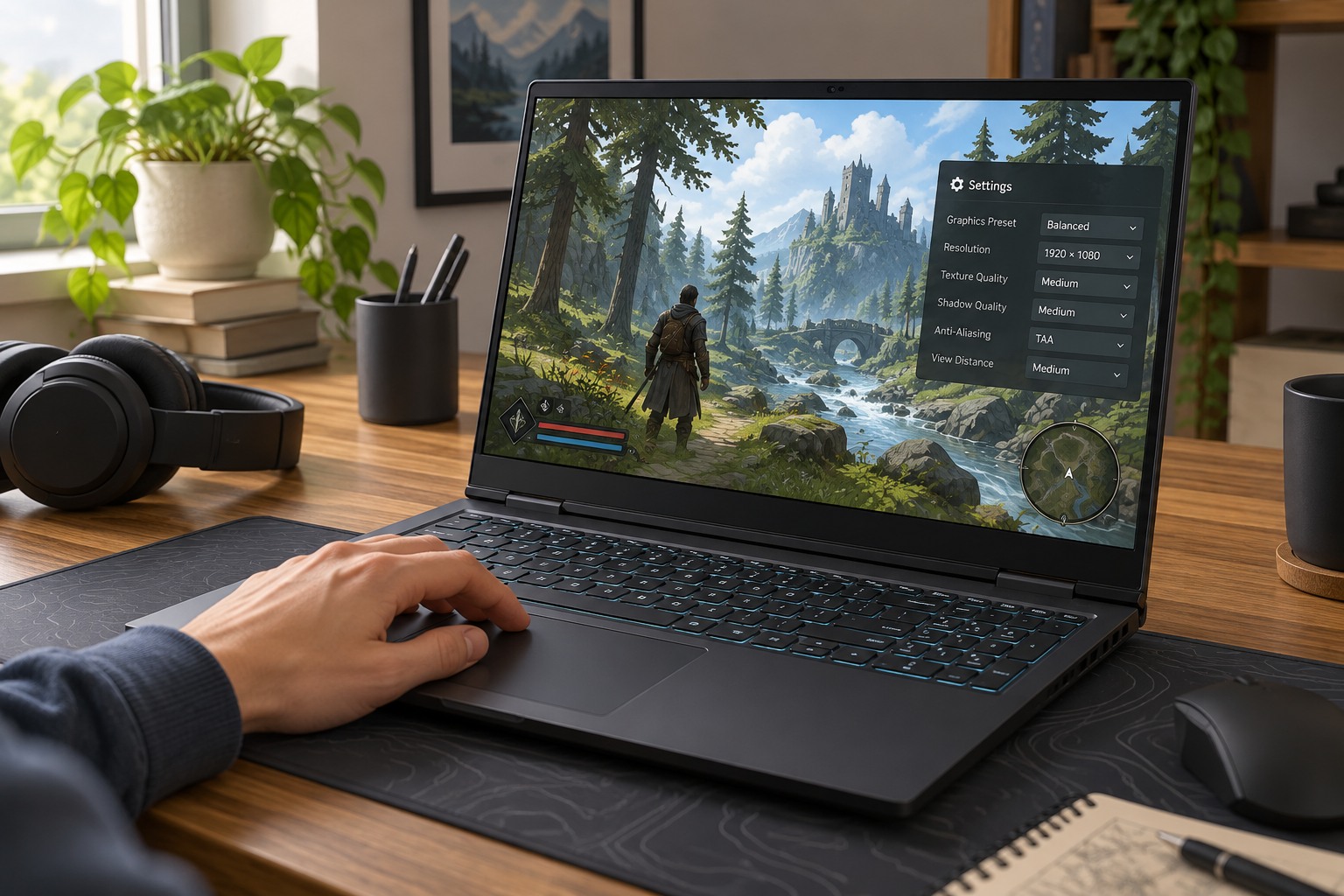
Turn frame generation off initially and find settings that make the underlying game reasonably consistent. Use a familiar scene with camera movement and interaction rather than only watching a benchmark flythrough. If controls already feel sluggish or the game pauses unpredictably, inserted frames may not resolve the cause. Lowering demanding effects or choosing a suitable upscaling mode can be a separate step toward a stronger baseline.
There is no universal base frame rate that guarantees an acceptable result for every player, genre and implementation. A slow exploration game controlled from a sofa presents a different demand from a fast aiming game at a desk. Evaluate your own input response with repeated, ordinary actions: turning toward a doorway, moving a cursor across a menu or steering through a familiar corner. Do not compare different scenes and attribute every difference to frame generation.
A useful comparison separates three observations: how continuous the motion looks, how quickly an action appears to respond and whether the underlying game pauses. Write a short note for each instead of compressing them into one judgment of smoothness. For example, a camera pan may look more fluid while menu selection feels unchanged and an occasional loading pause remains. Those results are compatible with one another; the feature can improve presentation without solving every part of the experience.
Inspect motion and interface behavior
Enable the option and repeat the same route. Look at objects revealed as the camera moves, thin structures, particles and the outline of the player character. Watch small interface elements and rapidly changing text as well. Generated images may contain transient errors that are difficult to capture in a single screenshot but visible during normal play. Their significance depends on how often they occur and whether they distract from the task.
Keep other changes out of the first comparison. If you simultaneously switch upscaling modes, alter a frame cap and enable a latency option, you cannot tell which control affected the result. Follow the game's supported recommendations for companion latency features, but record those settings explicitly. A third-party modification that exposes an unsupported option is a different setup from the feature the developer integrated and tested.
Check the display limit and the actual session
A display can present only the modes it supports, and synchronization or frame limits can affect the generated output. Read the game's guidance for combining these features rather than applying a universal cap formula. Multiple limiters can also make a counter behave unexpectedly. If the result feels worse despite a larger number, return to the known baseline and simplify the combination.
Try a longer session after the short comparison. Include busy scenes and menu transitions, and judge both comfort and control. Keep frame generation when the smoother presentation is worthwhile and the response remains suitable for the game. Disable it when artifacts or delayed-feeling controls outweigh that benefit. The useful result is a setting you enjoy playing with, not the largest displayed multiplier.