Find the port's documented function
Look up the exact computer model and identify each USB-C port separately. A system can have several similar sockets with different capabilities. Check for explicit video-output support, such as a supported DisplayPort alternate mode or a documented Thunderbolt or USB4 display arrangement, rather than assuming every USB-C socket is equivalent.
DisplayPort's guidance explains how DisplayPort can operate through USB-C. That is a supported mode of the connection, not a feature automatically supplied by the connector shape. A data-only port will not become a video output because an HDMI adapter fits into it.
Check the cable and adapter requirements
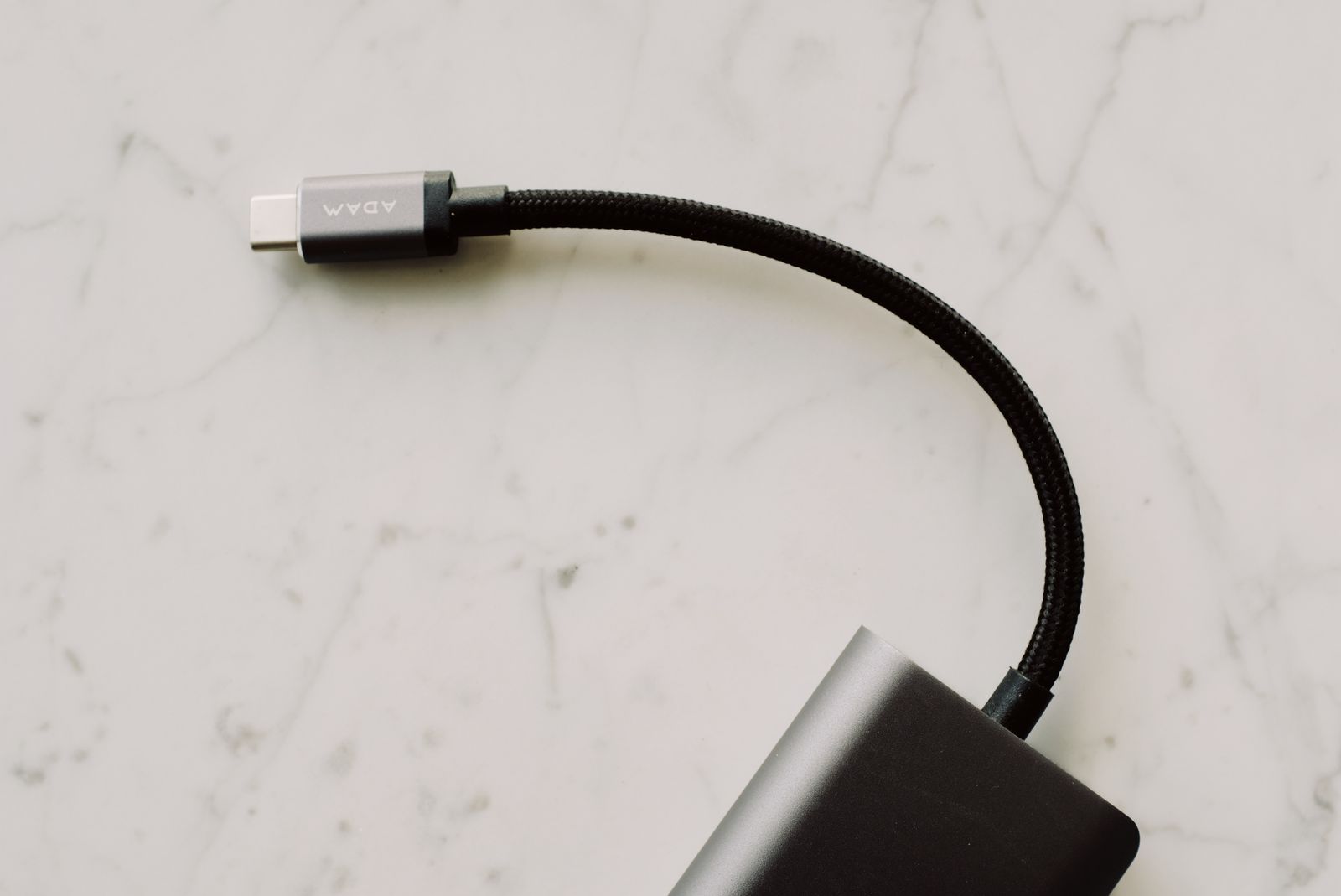
For a direct USB-C monitor connection, confirm that the cable supports the required video and data arrangement. A cable supplied mainly for charging another device may not be suitable. Read the cable's capabilities and the monitor maker's instructions, especially when the same cable is expected to carry power back to a laptop.
For an adapter, verify its direction and the modes supported with your host. A USB-C-to-HDMI adapter may rely on a particular video-output capability from the computer. Other adapters use different technology and software, so their requirements and limitations should be understood rather than treated as identical products.
Check the complete target resolution and refresh rate, including multiple displays if a dock is involved. A maximum advertised for one display may not apply when several outputs are active. Count the host's supported display limit as well as the dock's physical sockets.
Keep power delivery separate
A monitor or dock may charge a laptop through USB-C, but check the delivered power and the laptop's requirements. Video working does not prove that charging is adequate for the intended workload. A laptop may still need its original charger for full gaming operation, depending on the model.
Likewise, a laptop charging successfully does not prove that the same port or cable supports video. Test each intended function explicitly: picture, selected mode, audio if needed, USB peripherals and charging behavior. This prevents one successful feature from masking another unsupported one.
If no picture appears, begin with the exact port specification and a known suitable cable. Follow the computer and display troubleshooting steps before buying another adapter at random. A clear map of host port, cable, adapter and display input is more useful than a collection of similar-looking USB-C accessories.