Start with the handheld's supported dock behavior
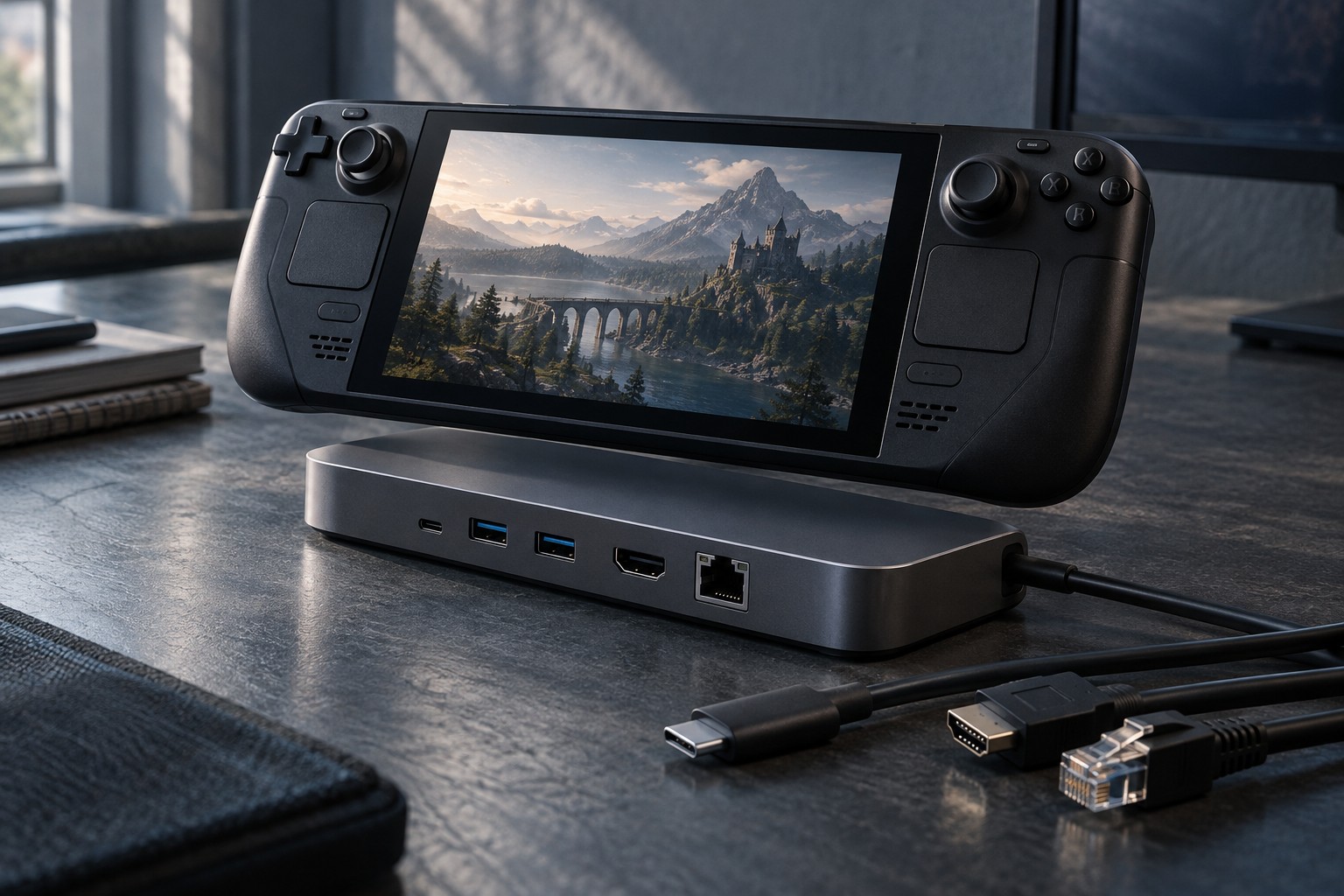
Read the handheld maker's guidance for external displays and charging. Some devices support a broad USB-C display arrangement, while others require specific accessories or have restrictions. A dock advertised for handheld gaming is not automatically compatible with every portable console or PC.
Check the dock's explicit model support and any required firmware. A physical cradle can fit while the electronics lack a needed feature. Conversely, an electronically suitable hub may not support the handheld securely, so its physical placement needs a separate solution.
Map every intended connection
Write down the display resolution and refresh rate, controller connection, storage device and network cable you plan to use. Read the dock's specifications for those functions together. A maximum display mode may depend on the host and the number of active ports, not just the socket printed on the dock.
DisplayPort's USB-C guidance explains that video is a supported capability of a connection rather than a property of the connector shape alone. Check the handheld's video support, the dock's conversion and the display input as a complete path. A charging-only cable will not serve every role in that path.
If the dock has a captive cable, check that it reaches the handheld's port without bending sharply or pressing against a grip. If it uses a detachable cable, follow the required specifications. Do not substitute a random USB-C lead merely because it connects at both ends.
Verify the power arrangement
Read the dock's power-input requirement and the amount it can deliver to the handheld after its own needs and connected devices are considered. A large input rating is not always the same as the delivered charging power. Use a supported charger and confirm the handheld's status under the intended workload.
A handheld that charges while idle may still behave differently during a demanding game or with several peripherals attached. Test that real arrangement. If warnings appear or the battery falls unexpectedly, inspect the documented power path before assuming the battery is defective.
Test setup and removal
Check startup, sleep, wake and input switching with the actual display. Test controllers and audio as well as the picture. A dock can show a desktop successfully while leaving a microphone or special display feature unsupported.
Follow the device's guidance when disconnecting storage or removing the handheld. Keep the dock stable and its cables routed away from the play area. The useful result is a repeatable transition between portable and docked use, with every required function verified rather than inferred from the product name.