Find the current official requirements
Use the publisher's or official store page for the exact game and edition. Requirements can change with major updates, and optional expansions or texture packs may add conditions. Check the date and distinguish a current release from an older test or early-access specification.
Read every category: operating system, processor, graphics hardware, memory, storage and any required graphics API or feature. A computer can exceed one category while failing another. Matching the graphics card does not make an unsupported operating system or missing storage requirement irrelevant.
Look for the intended experience
Minimum and recommended are labels defined by the publisher, not one universal standard. Look for a stated resolution, frame-rate target and image preset. If those are absent, avoid assuming that recommended means maximum settings at the display's native resolution.
Check whether the target uses upscaling, frame generation or a particular graphics feature. Those conditions affect how a performance expectation should be interpreted. A high displayed frame count with generated frames is not the same measurement as the base rendering rate, so keep the terms distinct.
Laptop and desktop components with related names can perform differently. Find the exact laptop configuration and supported power mode rather than treating a mobile graphics name as identical to a desktop requirement. Integrated graphics also need explicit consideration; a processor name alone may not identify the graphics capability in use.
Translate the requirements into your computer
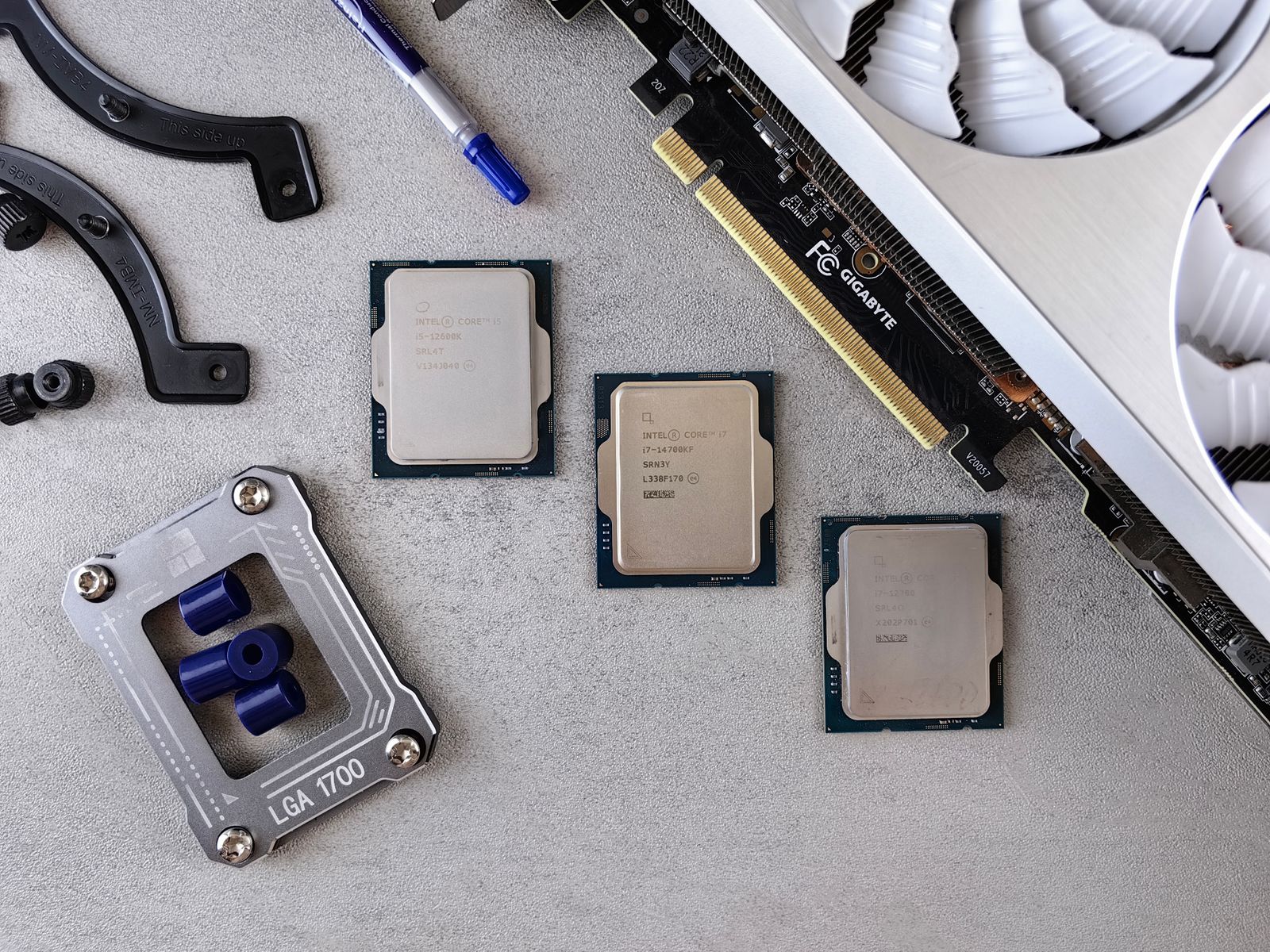
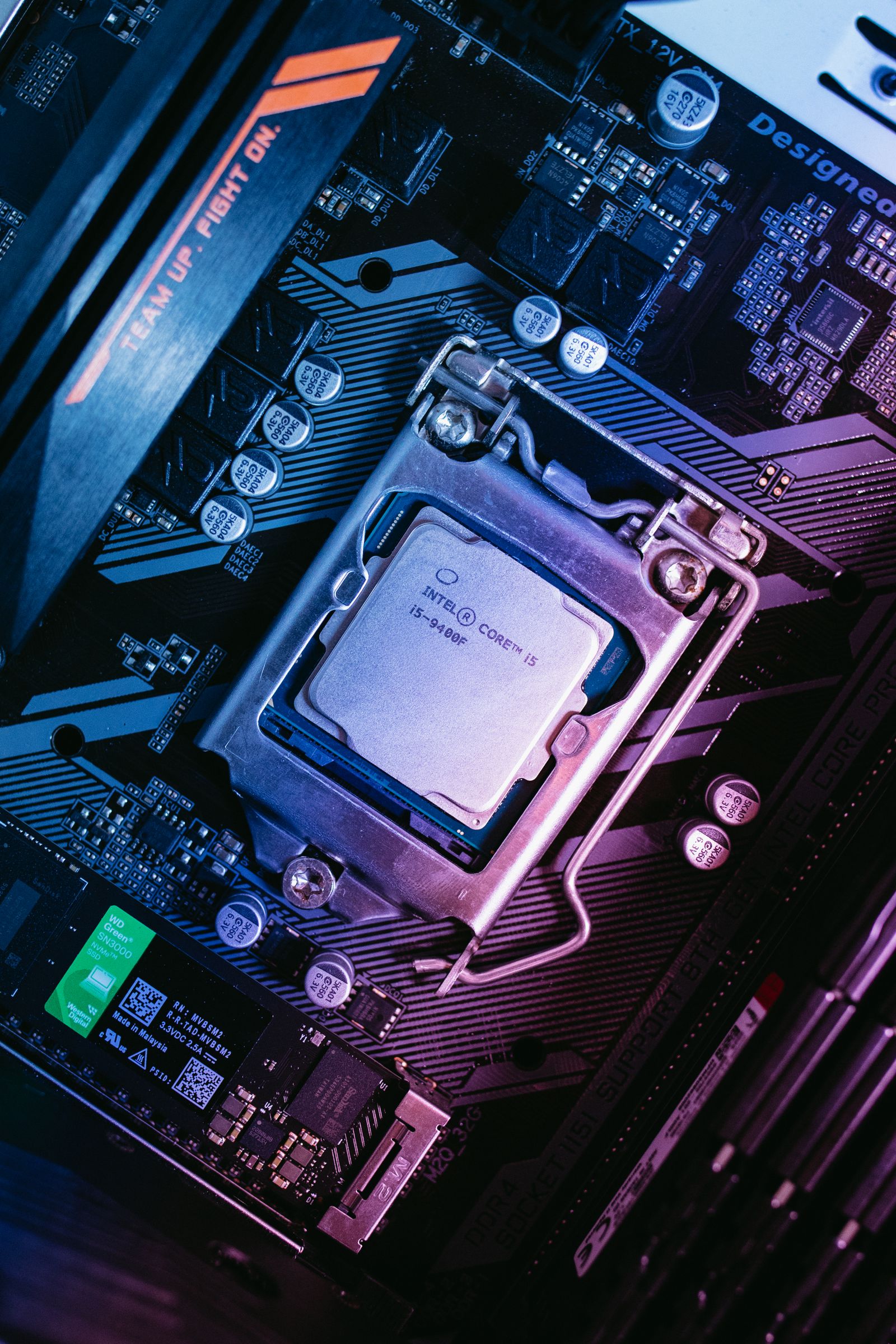
Use the operating system's system-information tools and the computer maker's specification to identify installed parts. Record full model names rather than abbreviations such as i7 or gaming GPU. Product generations can differ substantially, so a family label is not enough for a comparison.
Check available storage, not merely total drive capacity. Installation and updates may require temporary working room. Confirm whether an SSD is specified and whether the drive holding the game meets the requirement. Keep saved progress and personal files backed up separately before clearing space.
If the system is near a requirement boundary, look for an official demo, trial or clear refund policy that permits an appropriate evaluation. Do not treat a refund policy as a substitute for reading its conditions. Test the actual game settings you intend to use and avoid promising a particular result from specifications alone.
Keep the decision tied to the game
A computer that meets one game's requirements does not automatically meet another's. Maintain a short list of your most demanding intended titles when planning an upgrade. This makes the purchase about real workloads rather than a generic gaming label.
If a requirement remains unclear, ask the publisher or computer maker with the exact specifications. A precise question about one component or feature is more likely to produce a useful answer than asking whether an unspecified computer can run everything.