Define the rendering target
Write down the monitor's native resolution and the frame-rate range you would like to reach. Add the image settings you care about, including whether features such as ray tracing are important to you. A card chosen for moderate settings at one resolution may not produce the same experience at a substantially higher resolution with more demanding effects.
Separate the monitor's resolution from the game's internal rendering resolution. Upscaling can render at a lower internal resolution and reconstruct a larger output, while native rendering uses the target directly. Performance figures should state which method was used. Comparing a native result with an upscaled result without noticing the difference can produce a misleading shortlist.
Read results with the full settings visible
Use performance information that names the game version, preset and relevant features. Check whether frame generation is enabled and whether the reported number includes generated frames. That feature can change displayed frame counts, but it is not the same measurement as the base rendering rate or the responsiveness of input.
Look for several games representative of your library rather than one favorable demonstration. Different engines and effects can change the relative results. Include the processor and memory used in the test when considering how closely it resembles your own computer.
A minimum requirement is not a promise of high settings at your chosen resolution. Read the publisher's target conditions when provided, then use them as one piece of the comparison. Avoid buying a card because its name merely resembles a model in a requirement list.
Check the physical and electrical fit
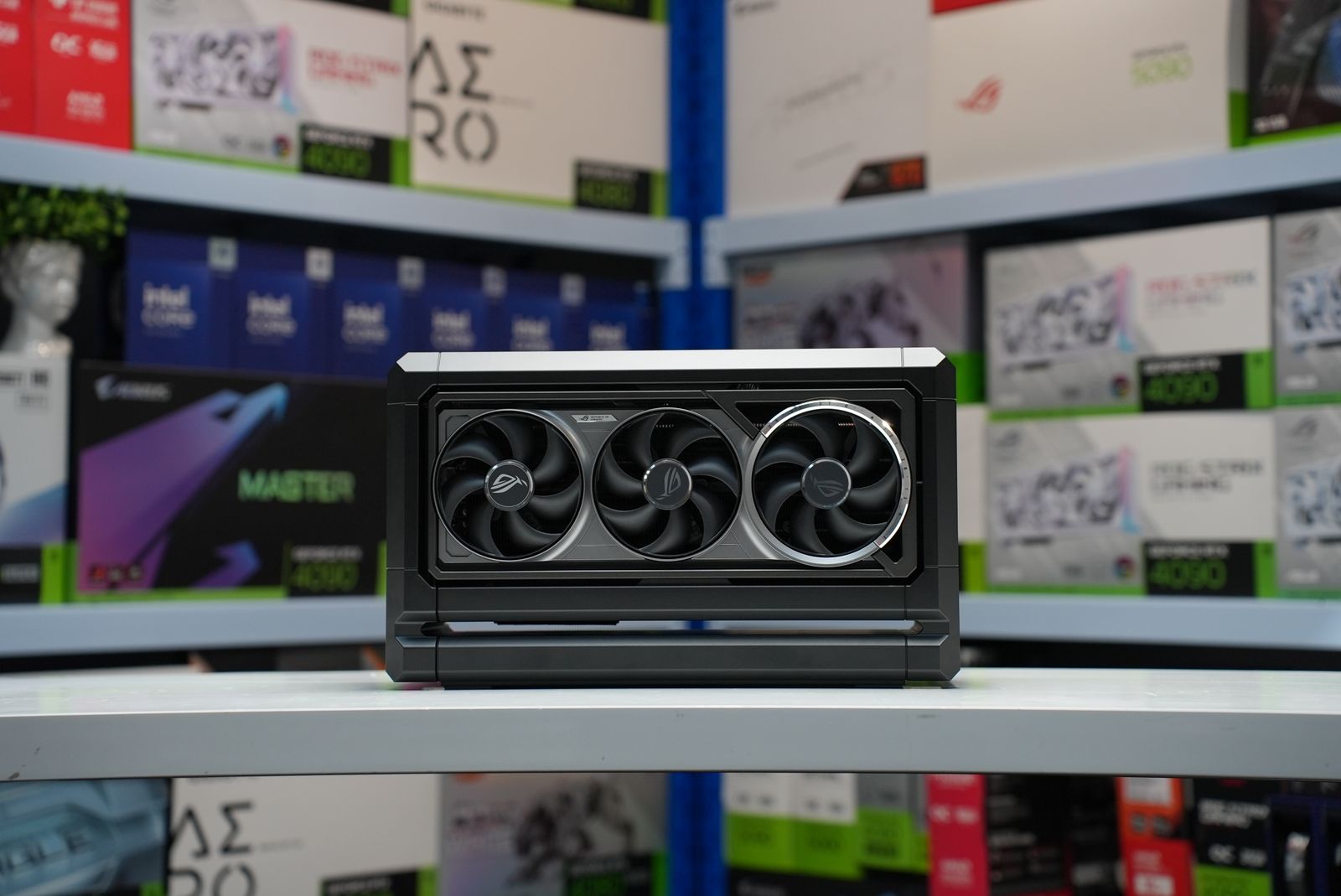
Find the exact card's length, thickness and power-connector requirements. Board-partner versions of the same graphics processor can have different coolers and dimensions. Measure the case with front fans, radiators and drive cages installed, and leave the connector clearance specified by the manufacturer.
Check the power supply's model, capacity and correct cables. Do not mix modular power-supply cables from unrelated units because the plugs appear to fit. Follow the graphics-card and power-supply makers' connection instructions, and include any necessary supported upgrade in the budget.
Verify display outputs against the monitor and cable arrangement. A card can have enough performance but still require a different connection to reach a particular resolution, refresh rate or feature. Count the outputs needed if more than one screen will be connected.
Make the compromise explicit
If the target is beyond the budget, decide which variable can change: image settings, frame-rate target, resolution or selected effects. Compare the resulting experience in the games you care about rather than treating every setting below maximum as a failed purchase.
Keep room in the budget for the complete system. A graphics upgrade that requires a new power supply or case may cost much more than the card alone. Choose a configuration you can install and support, with performance expectations tied to clearly stated conditions.