Match the drive to the host port
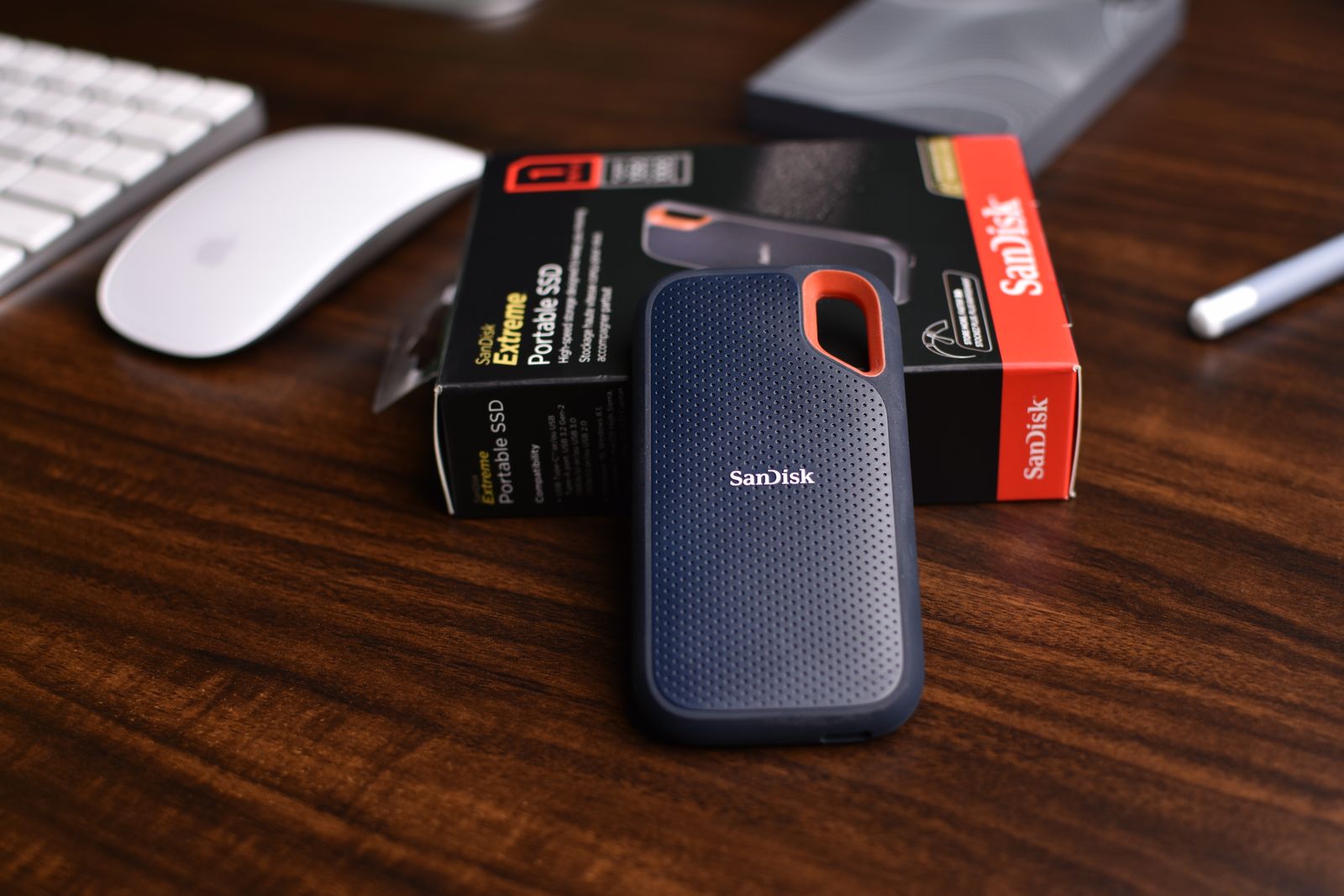
Read the laptop port's data specification and the external drive's requirements. A USB-C connector does not by itself establish a particular transfer rate. The drive, enclosure and cable all need to support the intended arrangement, and the slowest relevant part can limit the connection.
Check whether the drive is a complete external product or a separate SSD installed in an enclosure. With an enclosure, confirm the supported drive interface, physical size and cooling arrangement. An M.2 shape alone does not establish whether the enclosure accepts the drive's protocol.
Choose capacity and placement together
Plan capacity from the games you want installed, plus update space and any other files stored there. Keep backups separate; a portable game drive is not automatically a backup of the laptop. If personal files share it, organize them clearly so a later formatting or library operation does not become confusing.
Place the drive on a stable surface where its cable is not pulled by the mouse or a chair. Avoid leaving it dangling from the laptop port. Follow the maker's ventilation guidance and do not operate it inside a tightly closed pouch simply because that is where it is stored during travel.
A short cable can keep the desk tidy, but check that moving the laptop does not drag the drive. A longer cable needs controlled routing. Include the actual cable and any required power arrangement in the travel kit, not just the drive body.
Use a supported library workflow
Add the drive through the launcher's documented library settings and test one game before moving a large collection. Installation files, saved progress and cloud synchronization may use different locations. Confirm what is being moved rather than assuming the external drive contains every part of the game data.
Close games and launchers before disconnecting, then follow the operating system's safe-removal procedure where required. Do not unplug during a transfer or update. If the drive is used on more than one computer, check file-system and launcher compatibility before expecting the library to work unchanged.
Keep the drive labeled and inspect the cable periodically. If repeated disconnects occur, investigate the connection and power arrangement before reinstalling games unnecessarily. External storage is most useful when it behaves as a predictable part of the laptop setup, with a clear routine for connecting and removing it.