Start with the two endpoints
List the computer or console outputs and the monitor inputs. Read the supported-mode tables for the exact devices, including any differences between ports. A display can offer several HDMI sockets with different capabilities, and a graphics card may provide a different combination of DisplayPort and HDMI outputs.
Write down the target mode before shopping for a cable. Include resolution, refresh rate and features such as HDR or variable refresh if needed. Comparing only a cable's advertised resolution can overlook that it supports that resolution at a lower rate or under different color conditions.
Use cable certification and specifications
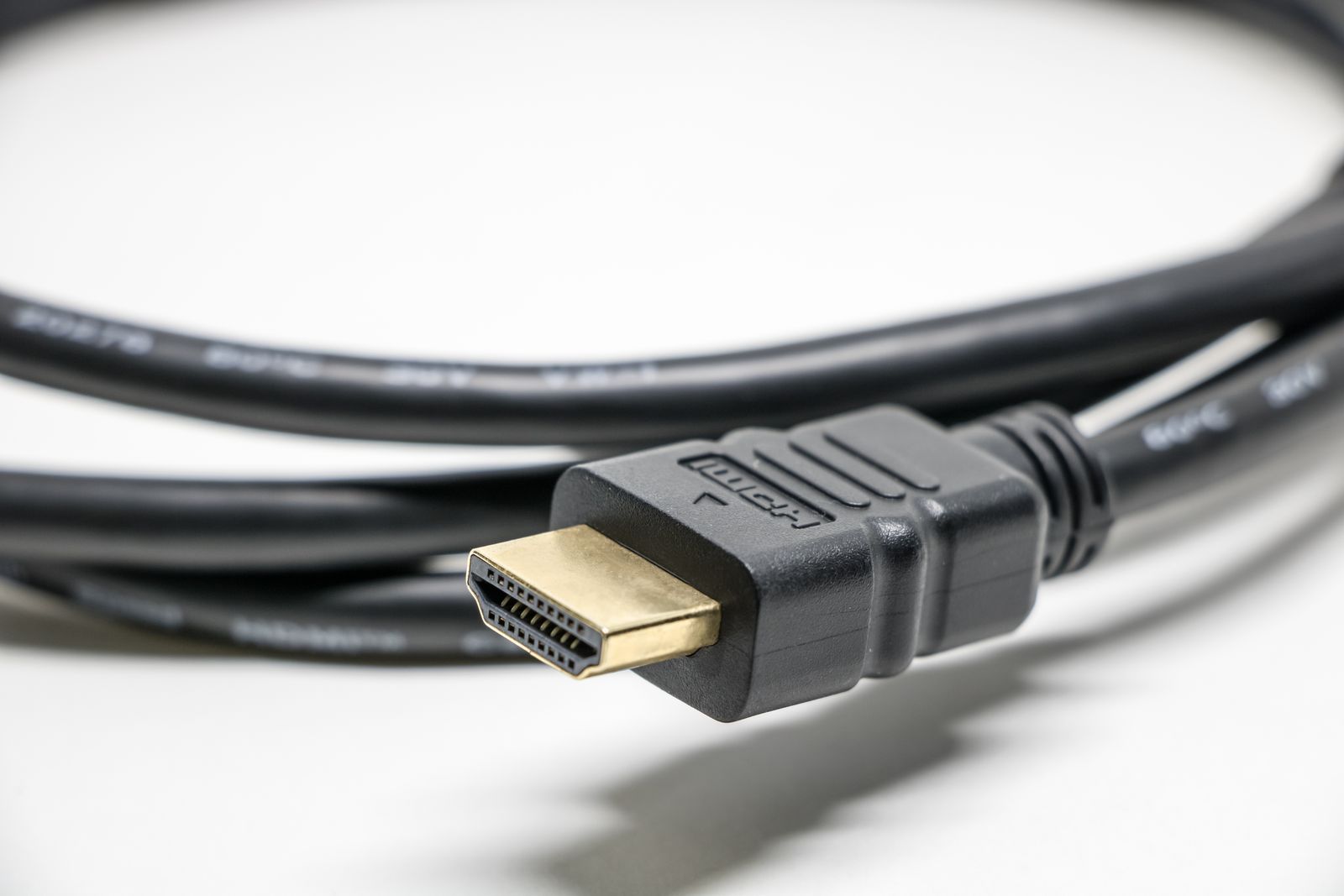
HDMI's official cable guidance distinguishes certified cable categories and their capabilities. DisplayPort also provides certification information and a database of certified products. Use those resources and the device manuals rather than relying solely on a seller's version number printed beside a connector image.
A suitable cable carries a supported signal; it does not upgrade the source or monitor. If an output lacks the required capability, replacing the cable with one advertising a larger number will not create it. Check every part of the path before spending money on repeated cable replacements.
Length matters to the practical arrangement. Choose enough reach for normal placement without an unnecessarily long coil, and respect the cable's bend limits. Some active cables are directional, so follow source and display labels where present. A directional cable connected backward can fail even when both plugs fit.
Treat adapters as an additional compatibility check
DisplayPort-to-HDMI and HDMI-to-DisplayPort arrangements are not automatically reversible. Read the adapter's direction, power requirement and supported modes. A passive-looking shape does not tell you whether it can perform the conversion needed by your source.
Docks and switches add further limits. Their headline maximum may apply to one display rather than several, or to a specific host connection. Confirm the exact combination of screens and features instead of assuming that each socket can independently provide the highest advertised mode.
Verify after connection
Inspect the operating system's selected resolution and refresh rate, then the monitor's information display. Enable the appropriate input mode if the manual requires it. Test a familiar game and check the features you planned, including audio if the cable is meant to carry it.
Keep the working cable identified when several similar leads are stored together. A short label with its purpose can prevent a later swap from silently reducing the available mode. The best connection is the supported, reliable route for the complete target, not one chosen from a general claim that a connector is always better for gaming.