Identify what can actually be replaced
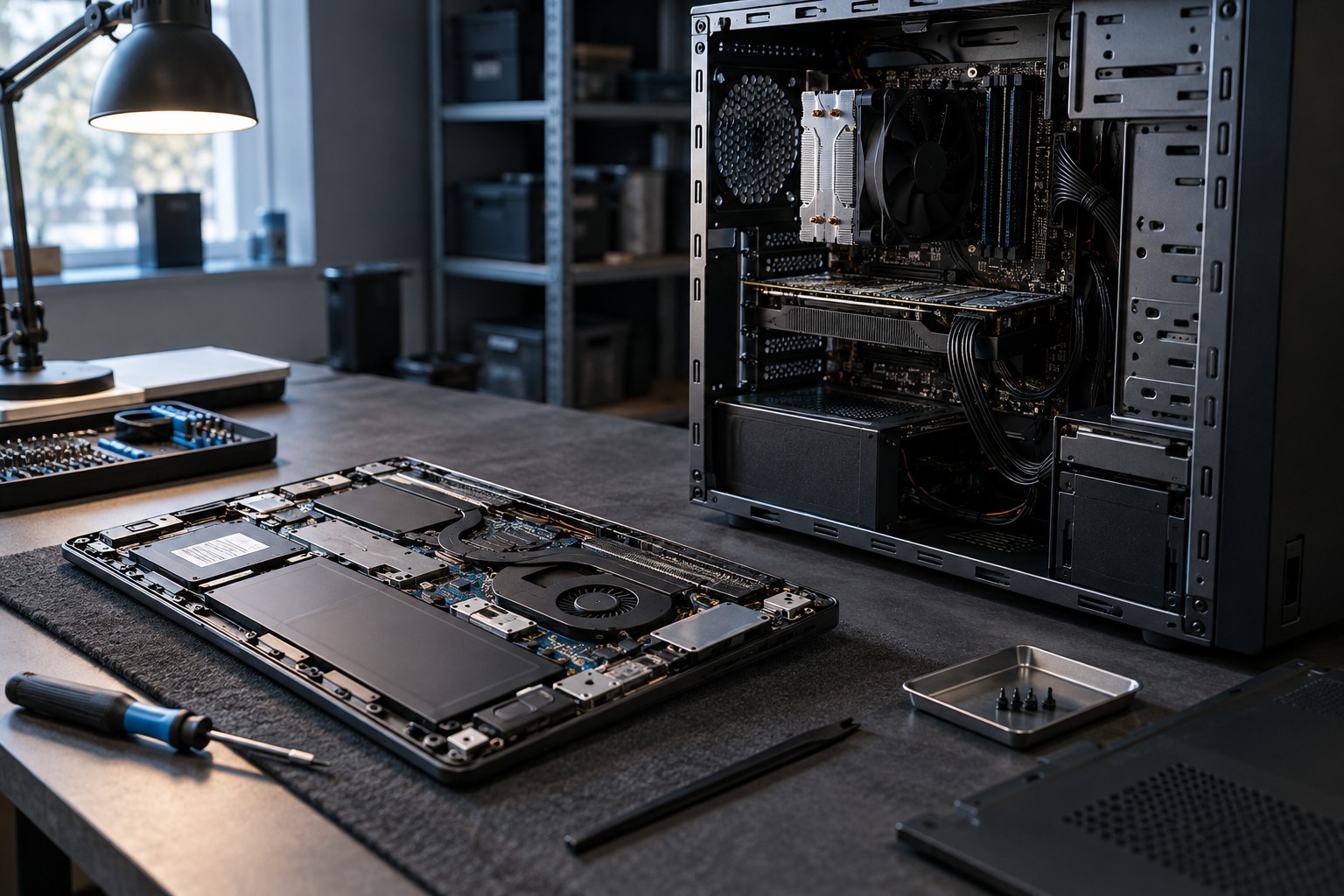
Read the service manual and specification for the exact model. Memory may be socketed, soldered or a combination; storage may have one slot or several; a desktop may use standard components or proprietary parts. An empty space inside a case is not proof of a supported expansion option.
Laptop processors and graphics hardware are often part of the system board rather than ordinary replaceable upgrade cards. Do not buy a laptop expecting a future graphics replacement unless the manufacturer explicitly documents that path. Desktop graphics cards are more commonly replaceable, but power, size and firmware requirements still apply.
Calculate the dependency chain
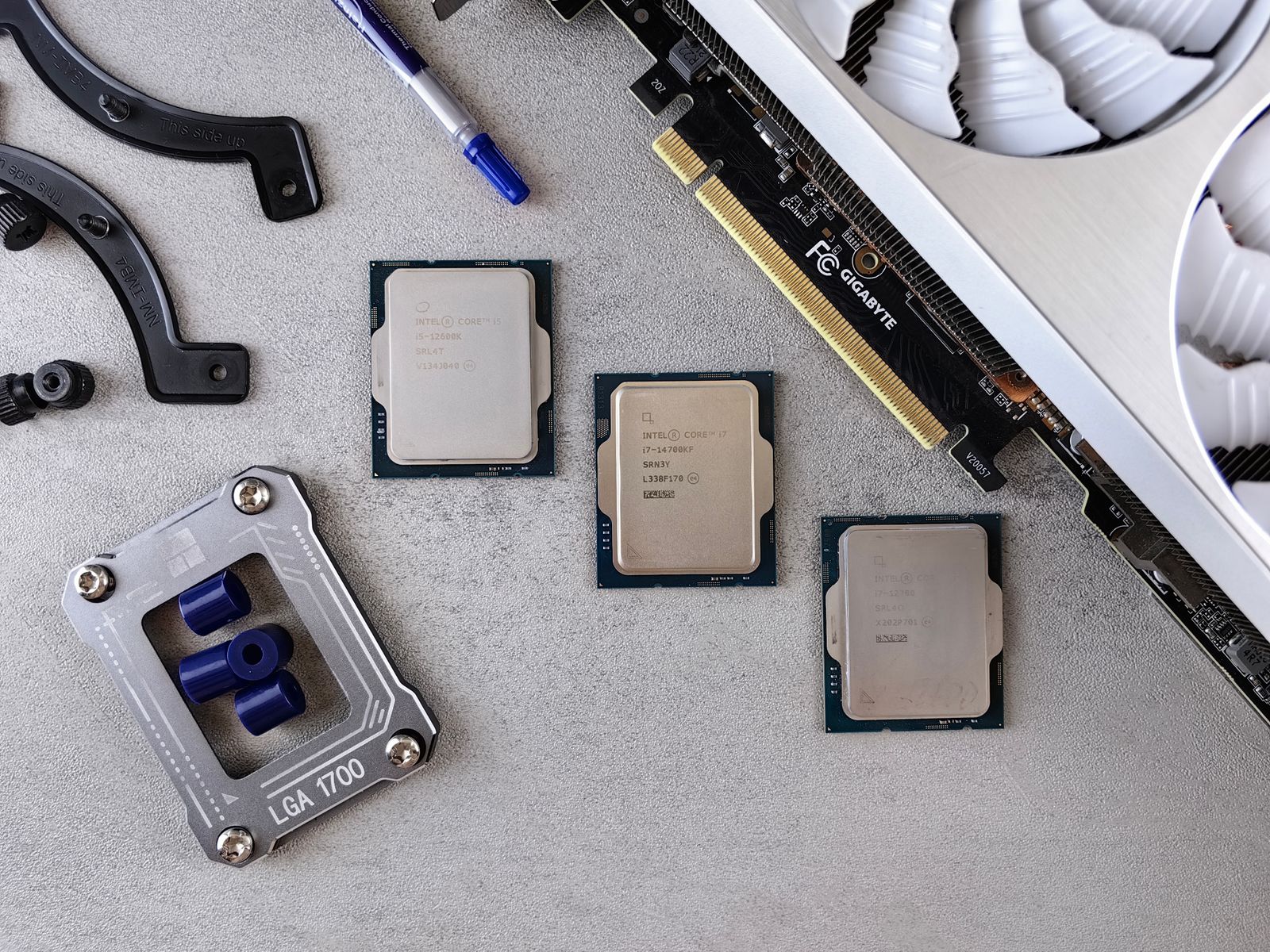
A processor upgrade can require a motherboard, memory or cooler change. A graphics upgrade can require a power supply or larger case. The cost is the entire chain of required parts, not just the component you first wanted to replace. List those dependencies before deciding that an older system is inexpensive to improve.
For storage, check whether an addition is possible or whether the existing drive must be replaced and migrated. For memory, inspect slot count, supported capacity and whether the current modules leave a sensible path. A configuration that fills every slot can be less convenient to expand later.
Proprietary connectors, compact layouts and special cooling parts can narrow the options in a prebuilt desktop. This does not automatically make the computer unsuitable, but it changes the ownership plan. Read the supported replacements rather than assuming that every tower uses interchangeable parts.
Include service access and support
Check the manufacturer's procedure, warranty terms and any tools required. A component being physically removable does not mean its replacement is a simple task for every owner. If a service provider is needed, include that cost and downtime in the comparison.
Keep firmware and recovery information organized before making changes. A new component may require a documented update, and replacing storage can require a recovery or installation plan. Back up irreplaceable files independently of the upgrade process.
Choose a computer that meets the current need and has a credible path for the changes you actually expect. Vague future-proofing is less useful than confirming one likely addition, such as another supported SSD or a memory capacity increase. An upgrade plan should name the parts and limits, not rely on the general reputation of a form factor.