What is actually being synchronized?
Check whether the individual game supports cloud saves on the service you use. A launcher can offer cloud features without every title using them. The synchronized data may include progress, settings or other files selected by the developer. A game with an account-based online character may also use a different system from its offline campaign. Knowing which mechanism holds your progress makes recovery decisions less confusing.
A synchronized copy generally follows changes made during play. That can include an accidental overwrite or an unwanted new campaign, so the existence of a cloud icon does not establish that an earlier version remains recoverable. Look for explicit version-history or restore features before relying on them. Do not promise yourself a rollback that the service never offered.
Give each device a clear turn
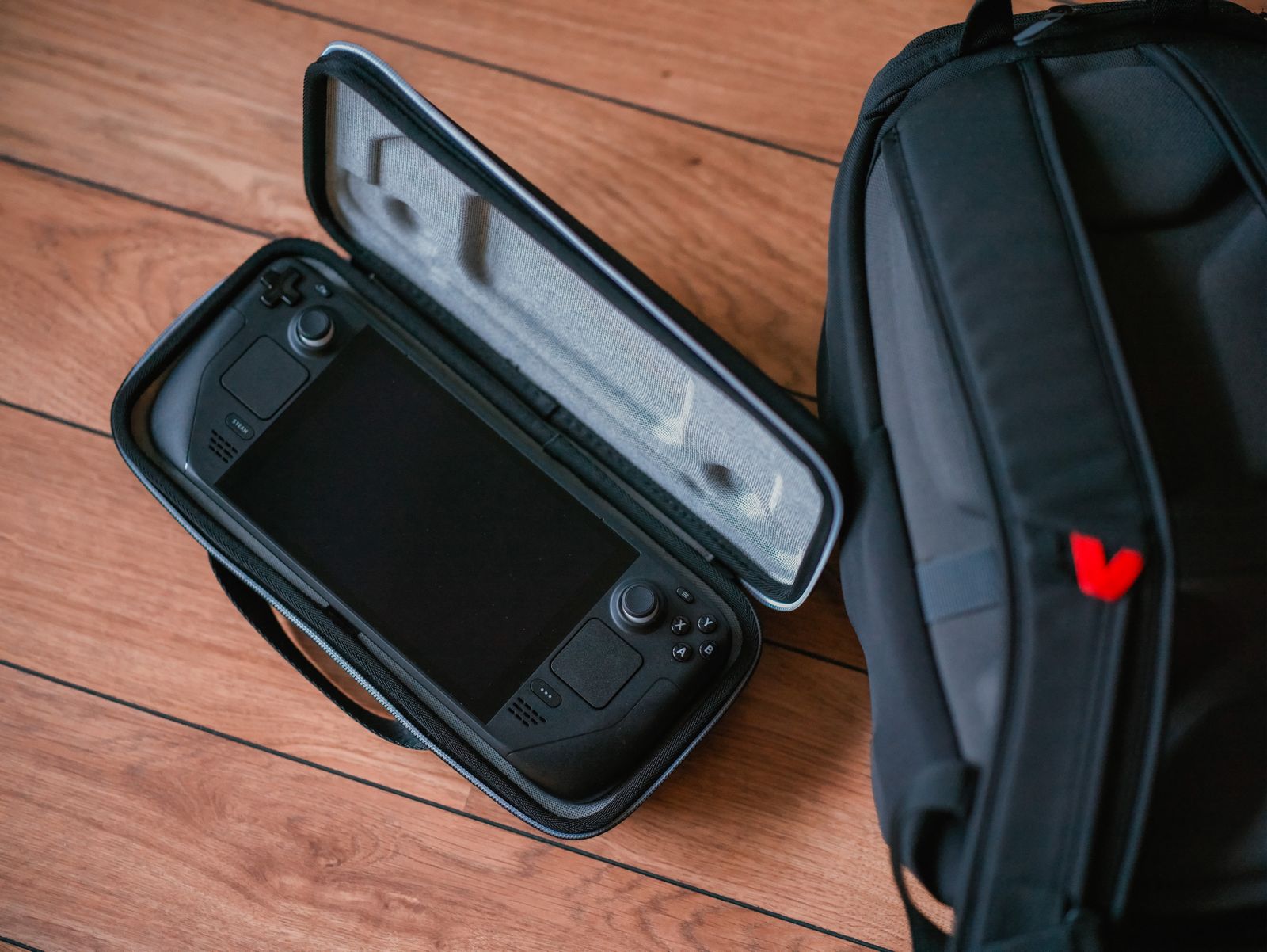
When moving from a desktop to a handheld, close the game normally on the desktop and allow its synchronization to finish. Then start the handheld while it has a connection and check the game's sync status before launching. Reversing that sequence can create two branches of progress, especially if the second machine has been offline.
Steam warns that playing offline postpones cloud synchronization and can lead to conflicts when the machine reconnects. If you encounter a conflict, stop and identify the desired session rather than clicking whichever button clears the warning. Compare the device, time and known progress. A clock that is wrong or a file rewritten by a settings change can make a timestamp less decisive than it looks.
Keep an independent copy when supported
For a PC game that documents its save location and supports file backups, close the game before copying the relevant files to a separate folder or backup device. Keep the copy outside the active synchronized folder and name it with the game, profile and date. Back up the complete save set specified by the developer rather than selecting an unfamiliar file because it is the largest.
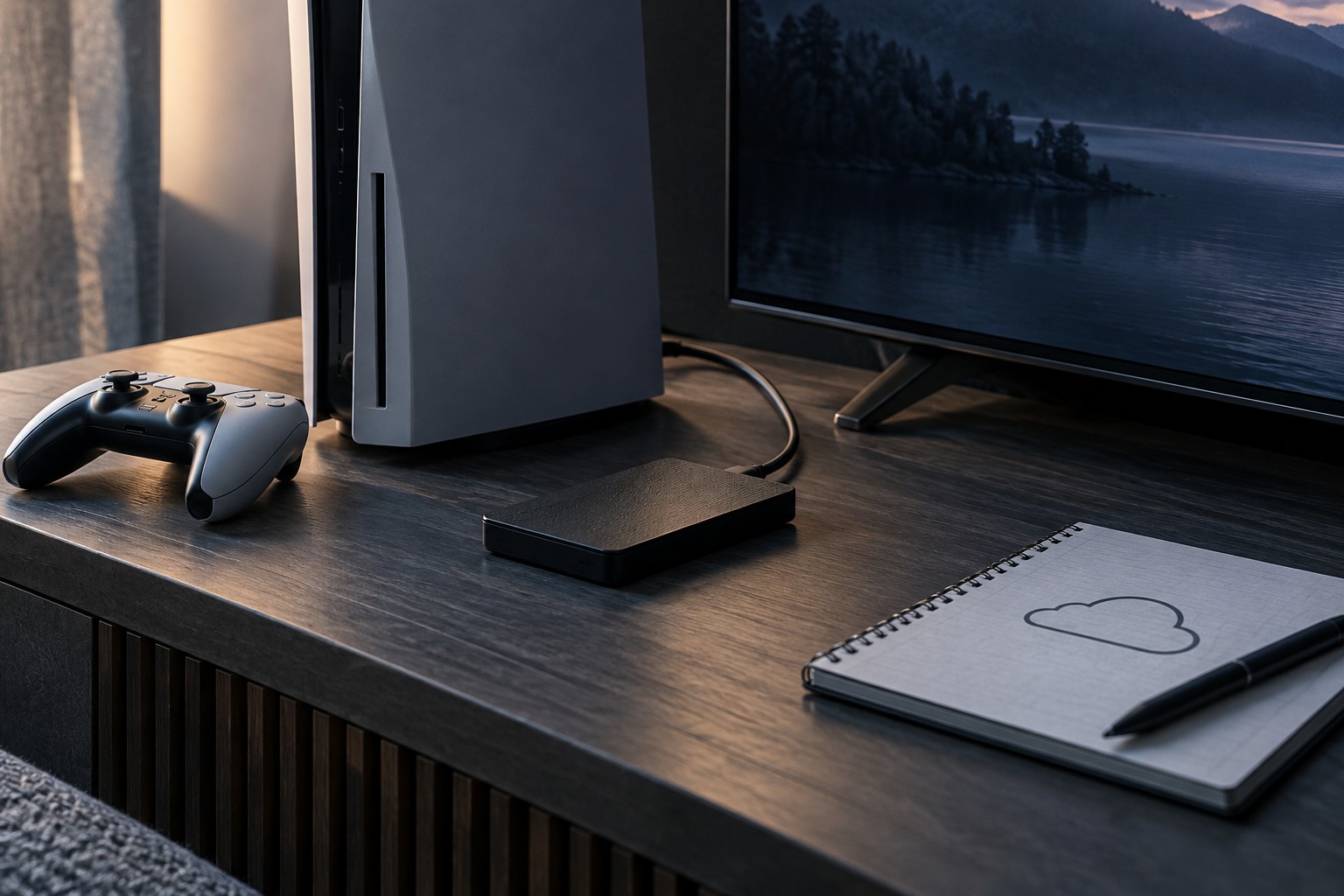
Console backup options are platform-specific and may not expose individual saves as ordinary files. Use the official backup or transfer procedure and confirm what it includes. Whatever method you choose, distinguish making a backup from testing one: a folder that exists is only the first step. Before deleting the original device's data, confirm that the intended progress can be accessed through a supported restore process.
A two-device example
Imagine a laptop that was last played on Monday and a desktop used on Wednesday. The laptop is taken offline on Thursday and continues from its older local save. Both machines now contain legitimate but different sessions. Reconnecting the laptop cannot automatically know which branch you value more. The newest file timestamp may describe the Thursday branch even though the Wednesday desktop contains the campaign progress you intended to keep.
Before choosing a conflict resolution, identify the meaningful checkpoint on each device. If the game supports separate manual slots, those may help preserve distinct playthroughs, but do not assume the cloud stores them independently without checking. If supported, make an external copy of the local data while the game is closed. That gives you a stable reference instead of repeatedly launching the game and changing the files during diagnosis.
For a game that stores everything on a publisher server, a local file backup may not exist or restore account progression. Use that service's recovery procedure. The useful backup plan is the one supported by the actual game, not a generic promise that copying a launcher folder protects every title.