Separate the playing signal from the recording signal
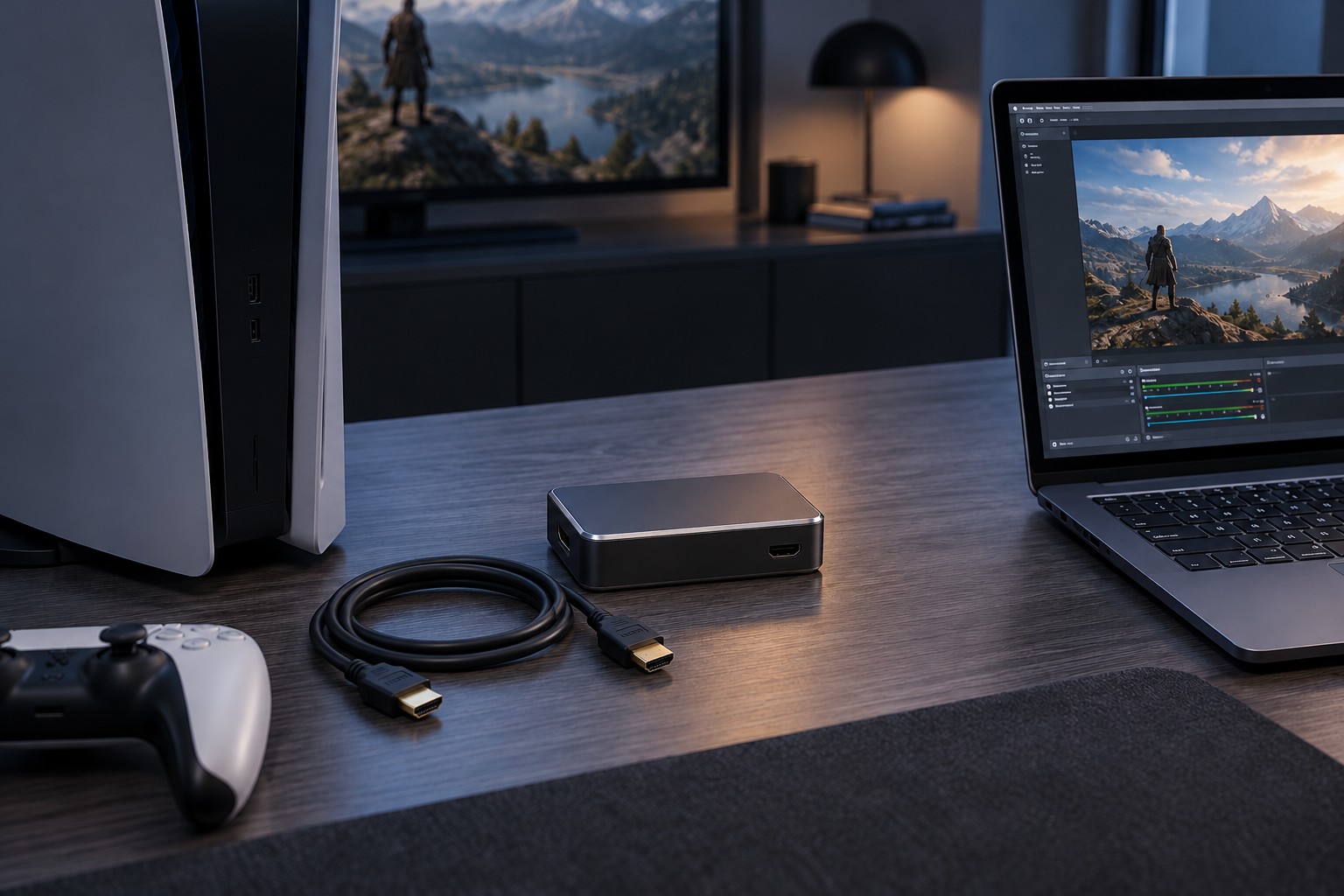
The usual arrangement sends the console's HDMI output into the capture card, then uses the card's HDMI output for the television or monitor. A separate USB or internal computer connection carries captured video to recording software. Read the port labels before connecting anything: HDMI input and output are directional, and two sockets of the same shape do not perform the same role.
Passthrough describes the signal sent onward to the playing display. Capture describes what the computer can record or stream. Elgato explicitly distinguishes these specifications, and they need not match. A card may pass a particular display mode while recording at a lower resolution or frame rate. Decide on both your playing mode and your recording format before comparing products.
Check the complete signal chain
List the console output, capture input, passthrough output, display input and connecting cables. For each, check the combination of resolution, refresh rate and features you actually intend to use. Support for one high resolution does not establish support for every refresh rate, HDR format or variable-refresh arrangement at that resolution. A single unsupported link can force a different mode or produce no picture.
The recording computer also needs the connection and resources specified by the card. A USB-C-shaped port does not by itself establish the required data rate. Connect the card as its instructions describe, initially without an unverified hub. Choose the device in the recording application and confirm the incoming format before adjusting overlays or stream layouts.
Content protection can prevent capture of certain signals. Use only the platform's supported settings for capturing gameplay, and expect protected video applications to behave differently. Do not assume a blank picture means the hardware is broken or look for a way to bypass protection. Return to a known-supported game signal when diagnosing the setup.
Make a short recording before a long session
Play on the passthrough display rather than assuming the software preview has negligible delay. Record a short clip with movement, menu text and speech. Watch the resulting file, not just the live preview. Confirm that sound is present, picture proportions are correct and motion looks as expected. A good-looking preview does not prove that the saved file uses the intended settings.
Chat audio may follow a different route from game audio, especially when a headset is plugged into a controller. Check the console, game and capture-device instructions rather than buying a splitter at random. Ask other participants before recording their conversation. Save the working connection diagram and settings so the next recording starts from a known arrangement instead of another round of cable swapping.
Isolate a missing-picture problem
If the television shows nothing, remove the capture card temporarily and connect the console directly with a known-working cable. Confirm a supported output mode there. Then restore the card with one display and the simplest documented configuration. This separates a console or display problem from a limitation introduced by the capture chain. Avoid changing recording software settings to solve a passthrough issue before establishing whether the display receives a signal at all.
If passthrough works but the software has no picture, inspect the computer connection, device selection and capture-format settings. A cable used successfully for charging another device may not meet the card's data requirements. Check the required port speed and use the supplied or explicitly suitable cable. Close other applications that may have claimed the capture device, following the manufacturer's troubleshooting steps.
If video works but audio does not, return to the signal diagram. Determine whether game sound is being sent over HDMI or redirected to a headset, and whether chat follows the same route. Record a short local test before investigating streaming-service settings. That keeps a hardware-routing problem separate from an online broadcasting problem.