Read the monitor's support by input
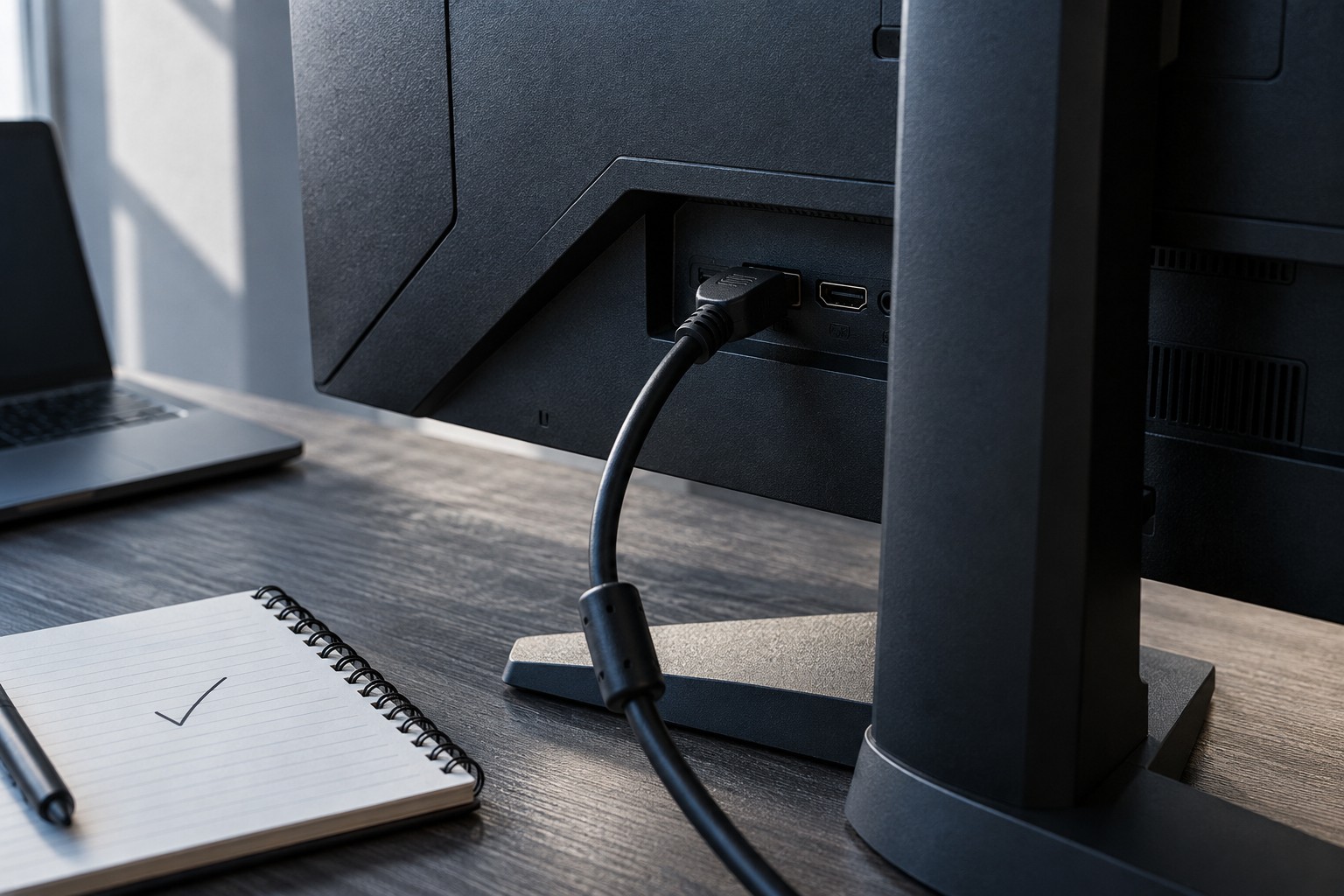
Find the monitor's specifications and manual for its adaptive-refresh features. Check which inputs support them and the stated operating range. A feature available through DisplayPort may have different support through HDMI on the same display. The product name alone does not describe every connection.
AMD explains that FreeSync uses industry standards including DisplayPort Adaptive-Sync and HDMI variable refresh arrangements. That general relationship does not establish that every monitor and graphics card combination supports the same features. Look for the exact certification or compatibility statement relevant to your source device.
Check the graphics side and the cable path
Confirm the graphics hardware and driver support, then inspect any dock, switch or adapter between the computer and monitor. An intermediate device can restrict a feature even when both endpoints support it directly. If troubleshooting, a supported direct connection is a useful comparison.
Use a cable suitable for the required resolution and refresh mode. A cable cannot add a feature that the source or display lacks, and a familiar connector shape does not guarantee the entire mode. Keep the intended resolution, refresh rate and adaptive feature together in the compatibility check.
For a console, use its official display-feature guidance and the monitor's console compatibility information. Computer-focused support does not automatically mean the console will expose the same option. Read any restrictions on resolution or output mode before buying the display for shared use.
Enable one documented configuration
Check the monitor's menu and graphics settings as instructed by the manufacturers. AMD notes that certain monitor presets or custom settings can disable FreeSync support. If the option is unavailable, inspect those conditions before assuming the hardware is defective.
Test a familiar game and note the frame-rate behavior within the supported range. Do not change several synchronization and frame-limiting controls at once. The interaction of game settings and driver options can be confusing, so begin with the documented recommended setup and keep a record of it.
If you see flicker or another unwanted effect, compare with the feature disabled and consult the model's support guidance. Do not assume that a visible problem is universal to all adaptive-sync displays. A useful purchase decision combines documented compatibility with a return-period test of your own games and connection path.